

Short answer: in a browser session, press Ctrl + Alt + Shift and set Input method to Text input. Your own device’s keyboard software then handles the typing, which is what makes Chinese, Japanese, Korean and phone keyboards work properly.
Applies to: browser access · Windows, Mac, Chromebook, Linux, phones and tablets
If you type in a language that needs an input method editor — Chinese, Japanese, Korean and others — a browser session can feel like it is ignoring you. You start composing a word and nothing sensible arrives.
The reason is that by default the session sends your raw keystrokes straight to Windows, one key at a time. An input method needs to compose several keystrokes into one character before anything is sent, and it cannot do that if the keys have already gone. There is a setting that fixes it.
Switch to Text input mode
- Click inside your cloud desktop, then press Ctrl + Alt + Shift. The control menu slides in from the left.
- Find the Input method section, just below the clipboard box.
- Select Text input. Your own device’s keyboard software now composes the text before it is sent.
- Close the menu with the same three keys and type as you normally would.
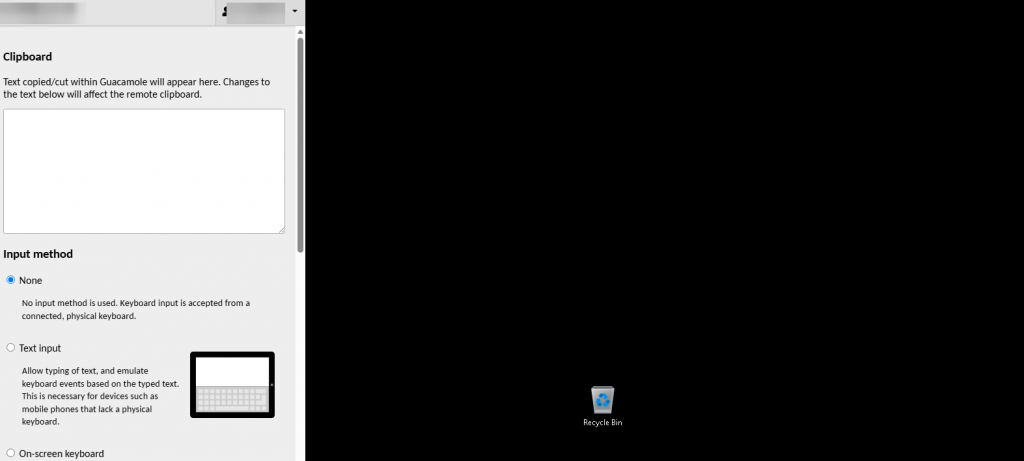
The Input method setting sits directly below the clipboard box in the control menu.
The three input methods explained
None
The default. Your physical keyboard is passed straight through, key by key. This is fastest and is what most people want for English and other languages that do not need composition.
Text input
Your device composes the text first, then sends the finished characters. This is the one to use for Chinese, Japanese and Korean, and it is also what makes an on-screen phone or tablet keyboard behave sensibly, including autocorrect and predictive text.
On-screen keyboard
A full keyboard drawn on screen that you click. Useful for key combinations your browser intercepts, and on touch devices without a physical keyboard.
Set the keyboard layout inside Windows too
Input method mode governs how keystrokes reach the cloud desktop. What Windows does with them afterwards is a separate setting, inside the desktop itself.
If accented characters, currency symbols or punctuation come out wrong, the Windows keyboard layout is probably set to US English while your physical keyboard is something else. Open Settings inside your cloud desktop, go to Time & Language, then Language, and add the layout that matches your keyboard. You can switch between layouts with the language button on the Windows taskbar.
Typing in another language every day?
Connect with RDP instead. It passes your keyboard through more faithfully, including input method editors, so there is no mode to remember to switch.
Questions and answers
How do I type Chinese, Japanese or Korean in a browser session?
Open the control menu with Ctrl+Alt+Shift and set Input method to Text input. Your own device’s input method editor then composes the characters before they are sent to the cloud desktop.
Why do accented characters come out wrong?
That is usually the Windows keyboard layout inside the cloud desktop rather than the connection. Add your layout under Settings, Time & Language, Language, and switch to it from the taskbar.
My phone keyboard types the wrong characters. What is wrong?
Switch Input method to Text input. Without it, a touch keyboard sends raw key events that do not match what you tapped, and autocorrect and prediction do not work.
Do I have to install a language pack on the cloud desktop?
Not for typing. Text input mode composes the characters on your own device, so the cloud desktop only receives finished text. You would only need a Windows language pack to change the language of Windows itself.
Does the setting stay switched on?
It applies to the current session. If you find yourself setting it every time, that is a good reason to connect with RDP instead, which passes your keyboard through natively.
Is there an equivalent setting over RDP?
No, and none is needed. RDP passes your keyboard and input method editor through directly, so composition works without any mode to switch.
Related articles
- The hidden menu: press Ctrl+Alt+Shift in your browser session
- How to copy and paste between your computer and your cloud desktop
- Browser access or RDP: which should you use?
Still not typing correctly?
Open a support request from your control panel — that is the fastest route, because it reaches the team who can already see your account. You can also email [email protected]. Tell us which language and which device you are typing from, and what appears instead.