

Short answer: in a browser session, use the clipboard box. Press Ctrl + Alt + Shift to open the control menu, paste your text into the clipboard box, then paste again inside Windows. Over an RDP connection, ordinary Ctrl+C and Ctrl+V work with no extra steps.
Applies to: browser access and RDP · Windows, Mac, Chromebook, Linux, phones and tablets
Copy and paste is the first thing most people try in a new cloud desktop, and in a browser session it is the first thing that appears not to work. You copy a password on your own laptop, press Ctrl+V inside the cloud desktop, and nothing arrives.
Nothing is broken. Your computer and your cloud desktop keep separate clipboards, and in a browser they need a bridge between them. Here is how to use it.
Why Ctrl+C and Ctrl+V do not cross over
When your cloud desktop runs inside a browser tab, the browser sits between your keyboard and Windows. For security reasons a web page cannot freely read whatever is on your computer’s clipboard, so the two clipboards stay separate until you deliberately connect them.
That is what the clipboard box in the control menu is for. It is a shared space that both sides can see.
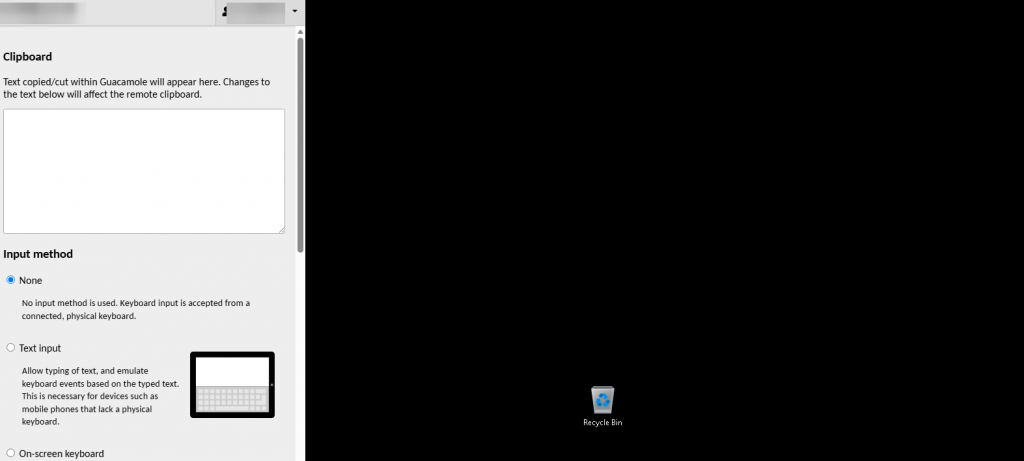
The clipboard box sits at the top of the control menu, opened with Ctrl+Alt+Shift.
Paste text from your computer into your cloud desktop
- Copy the text on your own computer as you normally would, with Ctrl+C (Cmd+C on a Mac).
- Click inside your cloud desktop, then press Ctrl + Alt + Shift. The control menu slides in from the left.
- Click into the clipboard box and paste. Your text appears in the box.
- Press Ctrl + Alt + Shift again to close the menu. The text is now on the cloud desktop’s clipboard.
- Click where you want it and press Ctrl+V. Inside Windows, use Ctrl+V even if you are on a Mac.
Think of it as two steps rather than one: paste into the box, then paste again inside Windows. Once that clicks, it stops feeling awkward.
Copy text from your cloud desktop back to your computer
The same bridge works in reverse, and this direction is slightly easier.
- Select the text inside your cloud desktop and press Ctrl+C.
- Open the control menu with Ctrl + Alt + Shift. The text you copied is already sitting in the clipboard box.
- Select it in the box and copy it with Ctrl+C (Cmd+C on a Mac).
- Close the menu and paste anywhere on your own computer.
Over RDP, copy and paste just works
If you connect with the Remote Desktop app rather than a browser, none of this applies. Clipboard sharing is switched on by default, so Ctrl+C on your computer and Ctrl+V inside the cloud desktop behave exactly as you expect — in both directions, and with images as well as text.
This is one of the better reasons to install the Remote Desktop app if you use your cloud desktop every day rather than occasionally.
Copy and paste stopped working mid-session over RDP?
The small Windows process that handles it occasionally stalls. Open Task Manager inside your cloud desktop, end the task named rdpclip.exe, then start it again from Task Manager’s Run new task box. Copy and paste comes back without disconnecting.
If pasting still does not work
- Your browser asked for clipboard permission and you dismissed it. Look for the small icon at the right-hand end of the address bar and allow clipboard access, then reload the session.
- You pressed Cmd+V inside Windows on a Mac. Inside the cloud desktop it is always Ctrl+V, regardless of which computer you are sitting at.
- You are trying to copy a file rather than text. The clipboard box handles text only. Use the file transfer panel in the same menu, or connect with RDP.
- The text arrived with odd line breaks. Formatting is not carried across — only plain text. Paste into the destination and reformat there.
- Nothing happens at all. Click once inside the session first, so the browser knows your keystrokes are meant for the desktop.
Questions and answers
Why does Ctrl+V paste nothing into my cloud desktop?
In a browser session your computer and your cloud desktop have separate clipboards, so text copied on one is not automatically visible to the other. Use the clipboard box in the Ctrl+Alt+Shift menu to bridge them. Over RDP, Ctrl+V works normally.
Can I copy files this way, or only text?
The clipboard box handles plain text only. To move files in a browser session, use the file transfer panel in the same menu, or drag the file onto the session window. Over RDP you can copy and paste files directly.
Does copy and paste work better over RDP?
Yes. Over RDP, clipboard sharing is on by default and works in both directions with text, images and files, with no extra steps. Browser access needs the clipboard box because a web page cannot read your computer’s clipboard freely.
Is it safe to paste a password through the clipboard box?
The connection itself is encrypted, so the text is not exposed in transit. The text does stay visible in the box until it is replaced, so clear the box afterwards if you are on a shared or public computer.
Why did my formatting disappear?
The clipboard box carries plain text only. Fonts, colours, tables and images are not preserved. Paste into the destination application and reformat there, or use RDP if you need formatted content to survive.
Copy and paste worked earlier and has now stopped. What changed?
Over RDP this is almost always the rdpclip.exe process stalling inside Windows. End it in Task Manager and start it again; there is no need to disconnect. In a browser, closing and reopening the control menu usually clears it.
Does this work on a Mac or a Chromebook?
Yes, on both. Copy on your own machine with Cmd+C on a Mac or Ctrl+C on a Chromebook, but always use Ctrl+V once you are inside the Windows cloud desktop.
Related articles
- The hidden menu: press Ctrl+Alt+Shift in your browser session
- Uploading and downloading files in your browser session
- Browser access or RDP: which should you use?
Still stuck?
Open a support request from your control panel — that is the fastest route, because it reaches the team who can already see your account. You can also email [email protected]. Tell us whether you are using browser access or RDP, and which direction is failing.