

Short answer: click once inside your cloud desktop, then press Ctrl + Alt + Shift together. A control menu slides in from the left with clipboard copy and paste, input methods and an on-screen keyboard. Press the same three keys again to close it.
Applies to: browser access only · Windows, Mac, Chromebook and Linux · Not needed if you connect with RDP.
When you open your Infosaic virtual desktop in a web browser, all you see is the Windows desktop. There is no toolbar, no buttons, and nothing on screen to tell you how to paste in a password or move a file across.
That is deliberate — the controls are tucked away so they do not cover your screen. The catch is that if nobody tells you the shortcut, browser access looks far less capable than it really is. Most customers who tell us they cannot copy and paste in their cloud desktop have simply not found this menu yet.
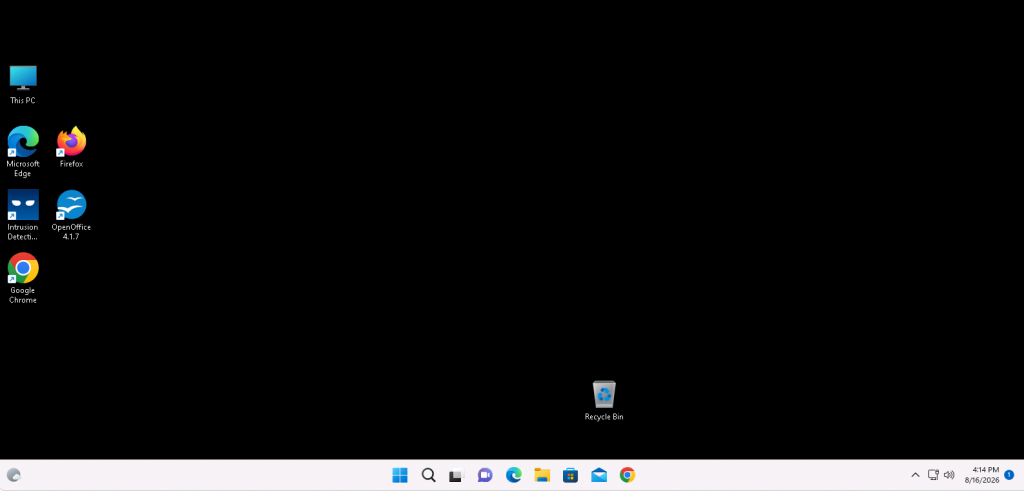
Your cloud desktop as it first appears in the browser. Everything you need is one keyboard shortcut away.
How to open the control menu
- Click once inside your desktop. This tells the browser your keystrokes are meant for the cloud desktop rather than the web page around it.
- Press Ctrl + Alt + Shift together. The control menu slides in from the left-hand side.
- On a Mac, use the Control key — not Command. This trips up almost every Mac user the first time.
- On a phone or tablet, swipe right from the very edge of the screen. There is no keyboard shortcut to press on a touchscreen.
- Press the same three keys again to close it and hand your keyboard back to Windows.
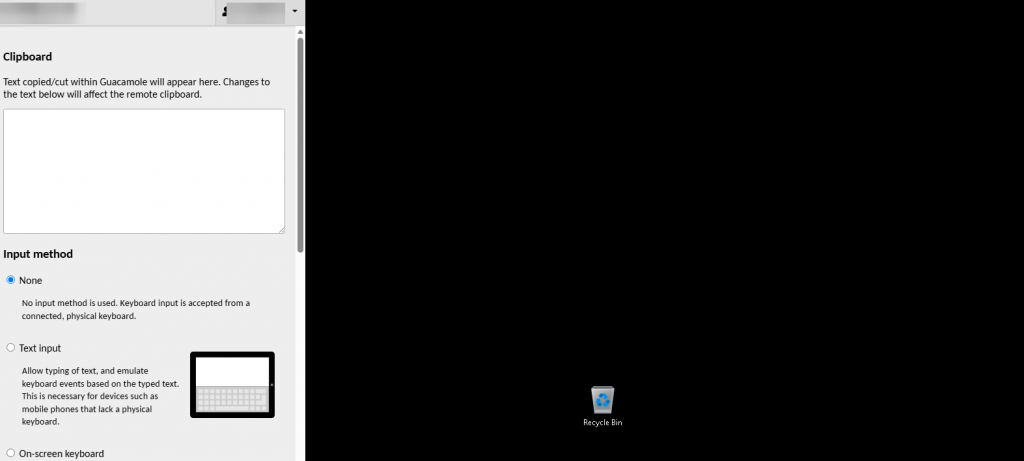
The control menu slides over the left edge of your session. Your desktop keeps running behind it.
Copy and paste using the clipboard box
The first thing in the menu is a text box that bridges your own computer and your cloud desktop. Anything you copy inside the session appears here, and anything you type or paste into this box becomes available to paste inside Windows.
This box exists because plain Ctrl+C and Ctrl+V do not reliably cross the boundary between your computer and a browser session. If copy and paste has been frustrating you, this is the fix — paste into the box, then paste again inside Windows.
You may notice the box refers to Guacamole. That is the name of the open-source technology behind browser access; you can safely ignore it.
Sending Ctrl+Alt+Del with the on-screen keyboard
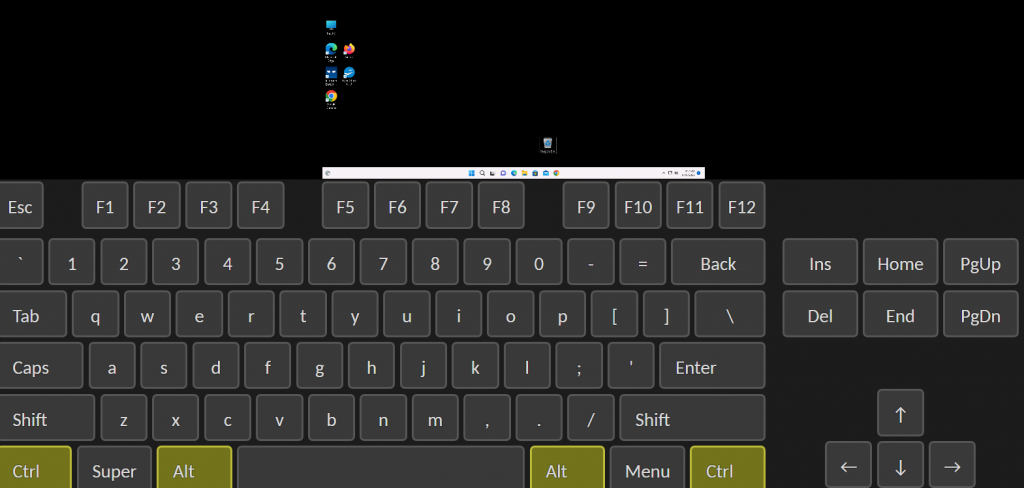
Some key combinations never reach Windows, because your browser or your own operating system grabs them first. Ctrl+Alt+Del is the obvious one, but the Windows key and the function keys can behave the same way.
The on-screen keyboard solves this. Click the keys you need and they are sent straight to the cloud desktop. Held modifier keys stay highlighted, so you can see exactly what the desktop thinks you are pressing.
It is also useful on a tablet, where your device keyboard may not offer the function keys at all.
Typing in another language
Below the clipboard is a setting called Input method. Leave it on None and your physical keyboard is passed straight through, which is what most people want.
Switch it to Text input and you type using your own device’s keyboard software instead. This is how you type Chinese, Japanese or Korean without installing anything on the cloud desktop, and it is what makes a phone or tablet keyboard behave properly.
Disconnecting and signing out
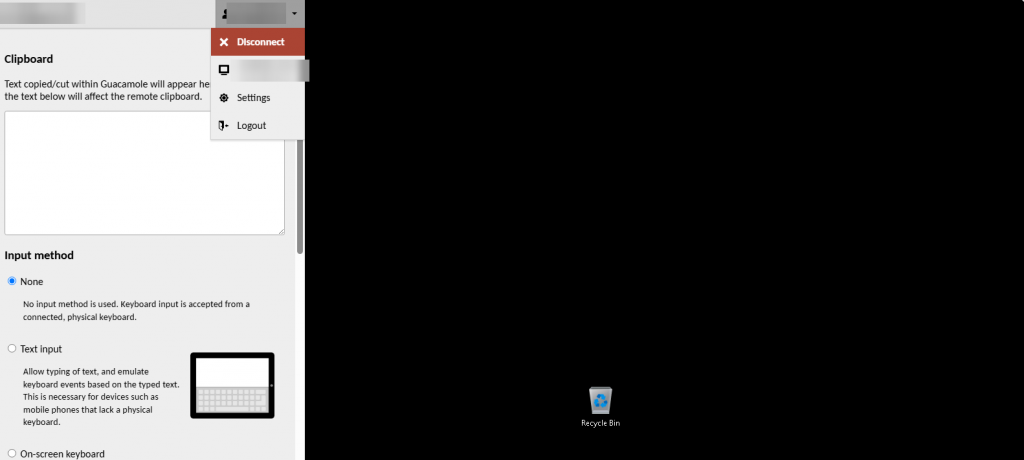
At the top of the menu is your account name. Click it and you get three more options.
Disconnect closes the browser session but leaves your Windows desktop running, exactly as it was. Anything you had open stays open, and you can pick up where you left off next time you connect.
Settings holds display and connection preferences, and Logout signs you out of the web portal entirely.
Working in the browser every day?
Consider connecting with RDP instead. Sound, printing to your own printer, a second monitor and full file access are all things browser access cannot offer, no matter which menu you open.
If the shortcut does not work
- Nothing happens when you press the keys. Click inside the session first. The browser sends keystrokes to whatever currently has focus, and that might still be the page rather than your desktop.
- You are on a Mac. You are probably pressing Command. Use Control.
- A key seems stuck down. Open the menu and close it again. That releases any modifier key the session thinks you are still holding.
- A browser extension is intercepting the shortcut. Try the session in a private or incognito window, where extensions are usually disabled.
- The swipe does nothing on your tablet. Start the swipe from the very edge of the screen, not from the middle.
Questions and answers
Why does Ctrl+C and Ctrl+V not work in my cloud desktop?
In a browser session your computer’s clipboard and the cloud desktop’s clipboard are separate. Use the clipboard box in the Ctrl+Alt+Shift menu to move text between them: paste into the box, then paste again inside Windows. Over an RDP connection, ordinary Ctrl+C and Ctrl+V work normally.
How do I send Ctrl+Alt+Del to a remote desktop in a browser?
Open the menu with Ctrl+Alt+Shift, choose the on-screen keyboard, then click Ctrl, Alt and Del on it. Your own computer intercepts that combination before it can reach the cloud desktop, so it has to be sent from the on-screen keyboard instead.
Does Ctrl+Alt+Shift work on a Mac?
Yes, but use the Control key rather than Command. Press Control, Option (Alt) and Shift together. This is the single most common reason Mac users think the menu does not exist.
How do I open the menu on a phone or tablet?
Swipe right from the very edge of the screen. There is no keyboard shortcut on a touchscreen. If the swipe does nothing, start it closer to the edge.
Does closing the browser tab log me out?
No. Closing the tab or choosing Disconnect leaves your Windows desktop running with everything as you left it. Logout signs you out of the web portal but still does not shut down your desktop.
Can I use browser access on a Chromebook?
Yes. Browser access works in Chrome on ChromeOS with no installation at all, and the Ctrl+Alt+Shift shortcut behaves exactly as it does on Windows.
Why does the menu mention Guacamole?
Apache Guacamole is the open-source technology that powers browser access to your cloud desktop. You do not need to know anything about it — the name simply appears in a few labels inside the menu.
Related articles
- Copy and paste text between your computer and your cloud desktop
- Uploading and downloading files in your browser session
- Browser access or RDP: which should you use?
Still stuck?
Open a support request from your control panel — that is the fastest route, because it reaches the team who can already see your account. You can also email [email protected]. Either way, tell us which browser and device you are using and what happens when you press the three keys; that is usually enough for us to answer on the first reply.