

Short answer: Sign in at controlpanel.infosaic.com. Either of your two logins works — the one you chose when you signed up, and the machine login from your welcome email. Inside you will find your account summary, billing and invoices, contact details, support tickets, and One Click Access to open your desktop in the browser.
Applies to: All Infosaic accounts · cloud desktop and hosting customers
The control panel is not where you do your work — that happens on the desktop itself. It is where you deal with the account: what you are paying, who we contact, and getting hold of us when something is wrong.
You will not need it every day. It is worth twenty minutes once, so that you know where things are when you do.
Signing in — either login works

This is the thing most worth knowing, because people assume they have the wrong details and stop.
- The login you chose when you signed up gets you in.
- The machine login in your Basic Account Information email also gets you in.
Both are valid, both reach the same account, and from either you can start a browser session on your desktop. If you have two sets of credentials written down, try whichever is nearer.
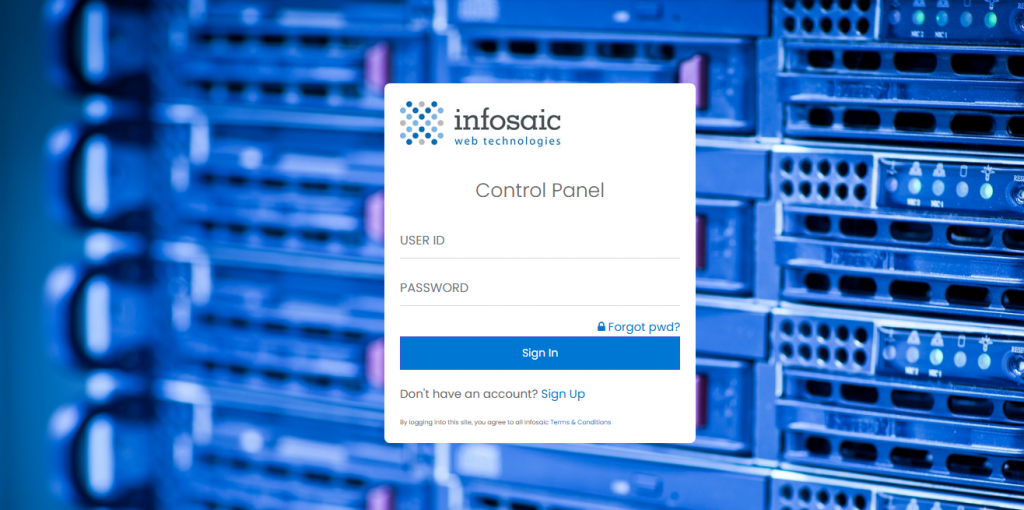
Either your sign-up login or the machine login from your welcome email will get you in here.
If neither login works, do not keep guessing. Three failed attempts are a support request, not a fourth try. Use the Forgot pwd? link, or email [email protected] from an address already on the account.
The account summary and the main menu
The first thing you see is Account Summary on the left: your domain, your user, your IP, the admin email address we hold, how many months are paid, the account status, your sign-up date and whether an SSL certificate is attached.
It is worth a glance now and then. The two fields that matter most are Status and Admin email address — the first tells you the account is healthy, the second decides whether you will hear from us at all.
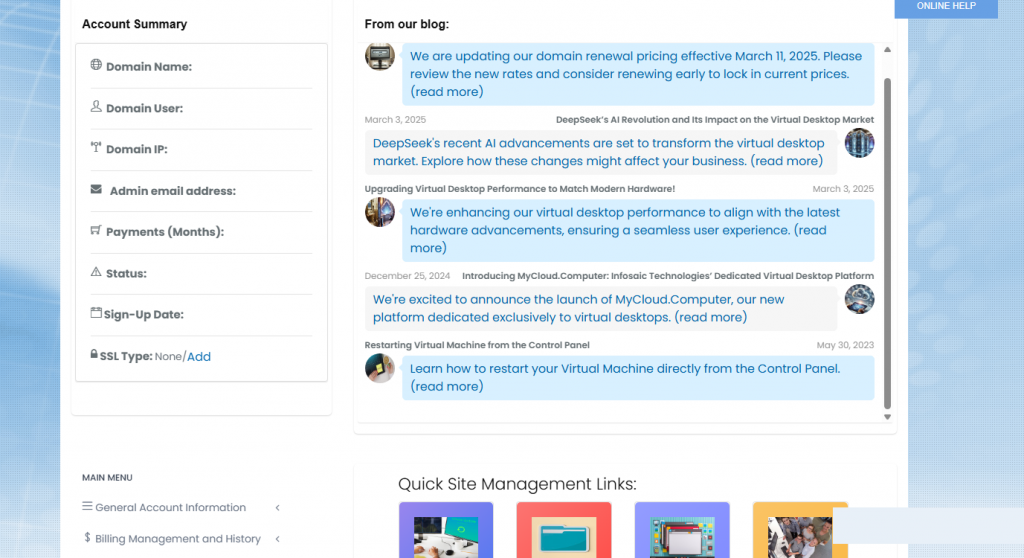
The Account Summary panel on the left, with the main menu below it.
Below the summary is the Main Menu, which is where everything actually lives: General Account Information, Billing Management and History, Email Administration, Tools & Utilities and the web server sections.
The quick links — the four things people actually come for
Further down the page there are two rows of shortcuts, and between them they cover most visits.
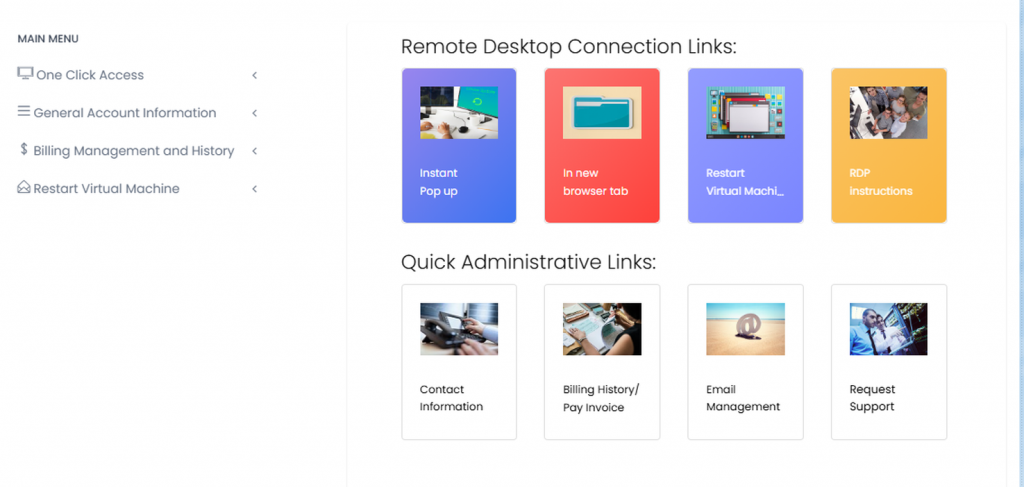
The main menu on the left, and the two rows of tiles that cover most visits.
Quick Administrative Links is the lower row, and it is the one to know:
- Contact Information — the email address we use to reach you. Check it first.
- Billing History / Pay Invoice — every transaction, and a way to settle anything open.
- Email Management — mailboxes and spam settings.
- Request Support — the fastest way to reach us, because the ticket arrives already attached to your account.
Remote Desktop Connection Links is the top row: Instant Pop up and In new browser tab both open your desktop in the browser, Restart Virtual Machine reboots it, and RDP instructions covers connecting with the Remote Desktop app.
Opening your desktop from here

The control panel has a One Click Access option that opens your cloud desktop in the browser. It works, and it is worth knowing about.
It is not, however, the quickest route. The direct link in your welcome email does the same thing without the sign-in first, and you can bookmark it. Most people use the bookmark day to day and come to the control panel only for account matters.
If you want the best performance — and printers, sound, USB and a second monitor — use the Remote Desktop app instead of either.
Restarting your desktop from here

If Windows has frozen and the desktop has stopped responding, the control panel can reboot the machine for you. Look for Restart Virtual Machine: it opens a page explaining what the restart does, with a button to continue.
This is the equivalent of holding the power button on a physical PC, so anything unsaved is lost. Try signing in and restarting from inside Windows first if you can still reach it; use this when you cannot.
There is more on when a restart is the right move — and when it will not help — in how to restart your cloud desktop.
What is not done here
- Installing software. That happens on the desktop itself.
- Changing your Windows password. Do that inside Windows.
- Recovering a deleted file. Open a support request.
- Anything to do with your files. They live on the desktop, not in the panel.
The dividing line is roughly this: the control panel is about the account and the machine as a whole; the desktop is about what is inside Windows. If it is something you would change on an ordinary PC, do it on the desktop.
Questions and answers
Where do I sign in to the Infosaic control panel?
At controlpanel.infosaic.com.
Which login does the control panel use?
Either one. The login you chose when you signed up and the machine login in your welcome email both work.
Can I open my cloud desktop from the control panel?
Yes, using One Click Access. The direct link in your welcome email is quicker, though, and can be bookmarked.
What is on the account summary?
Your domain, user, IP address, the admin email we hold, months paid, account status, sign-up date and SSL type.
Where do I see my invoices?
Under Billing Management and History, or the Billing History / Pay Invoice quick link.
Where do I change the email address you contact me on?
Contact Information, under General Account Information.
How do I raise a support ticket?
Use Open A Ticket in the top navigation, or the Request Support quick link.
Can I restart my cloud desktop from the control panel?
Yes. Use the Restart Virtual Machine link. It reboots the machine like holding the power button, so unsaved work is lost — restart from inside Windows first if you can still reach it.
I have forgotten my password. What now?
Use the Forgot pwd? link on the sign-in page, or email [email protected] from an address already on the account.
Related articles
- Where to find your login details and connection address
- Billing: how to view invoices and update your card
- How to open a support request (and get it solved faster)
- How to open your cloud desktop in a web browser
- Your first 10 minutes with your cloud desktop
- How to restart your cloud desktop (and when you should)
Still stuck?
Open a support request from your control panel — that is the fastest route, because it reaches the team who can already see your account and your desktop. You can also email [email protected].