

Short answer: Sign in at controlpanel.infosaic.com and open Billing Management and History. It has two entries: Billing History / Make Payment shows every transaction and lets you pay anything open, and Credit Card Update is where you set up or change automatic payment.
Applies to: All Infosaic accounts · cloud desktop and hosting customers
Everything to do with money sits in one menu, and there are only two pages in it. This article shows you both.
The most useful habit is checking the card details when a new card arrives, rather than when a payment has already failed.
Finding the billing section
Sign in and look at the Main Menu on the left. Billing Management and History expands into two items:
- Billing History / Make Payment
- Credit Card Update
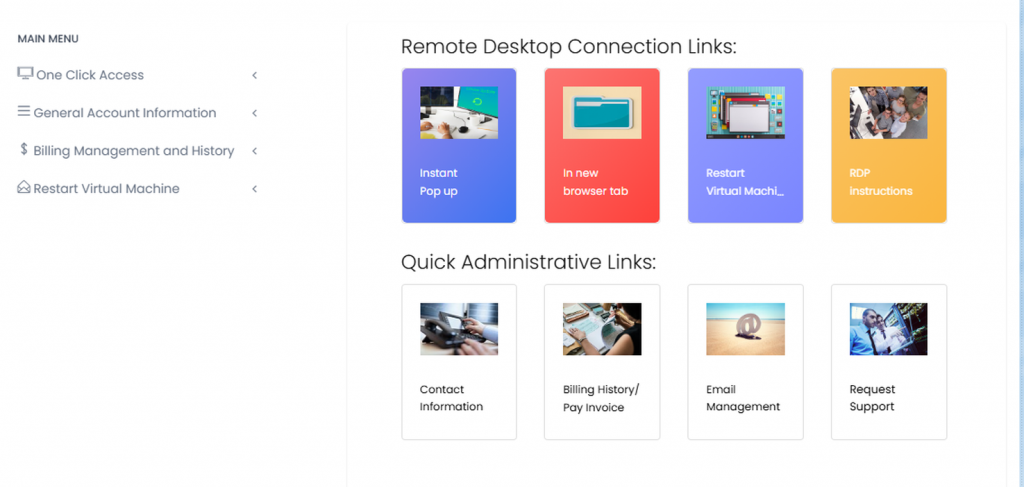
Billing Management and History expands to show Billing History / Make Payment and Credit Card Update. There is also a Billing History / Pay Invoice tile in the Quick Administrative Links below.
There is a Billing History / Pay Invoice shortcut in the Quick Administrative Links further down the page, which goes to the same place.
Your billing history
The history is a table, one row per billing period, showing the period covered, the package, the domain, what was billed, when payment was received, and a Details link.
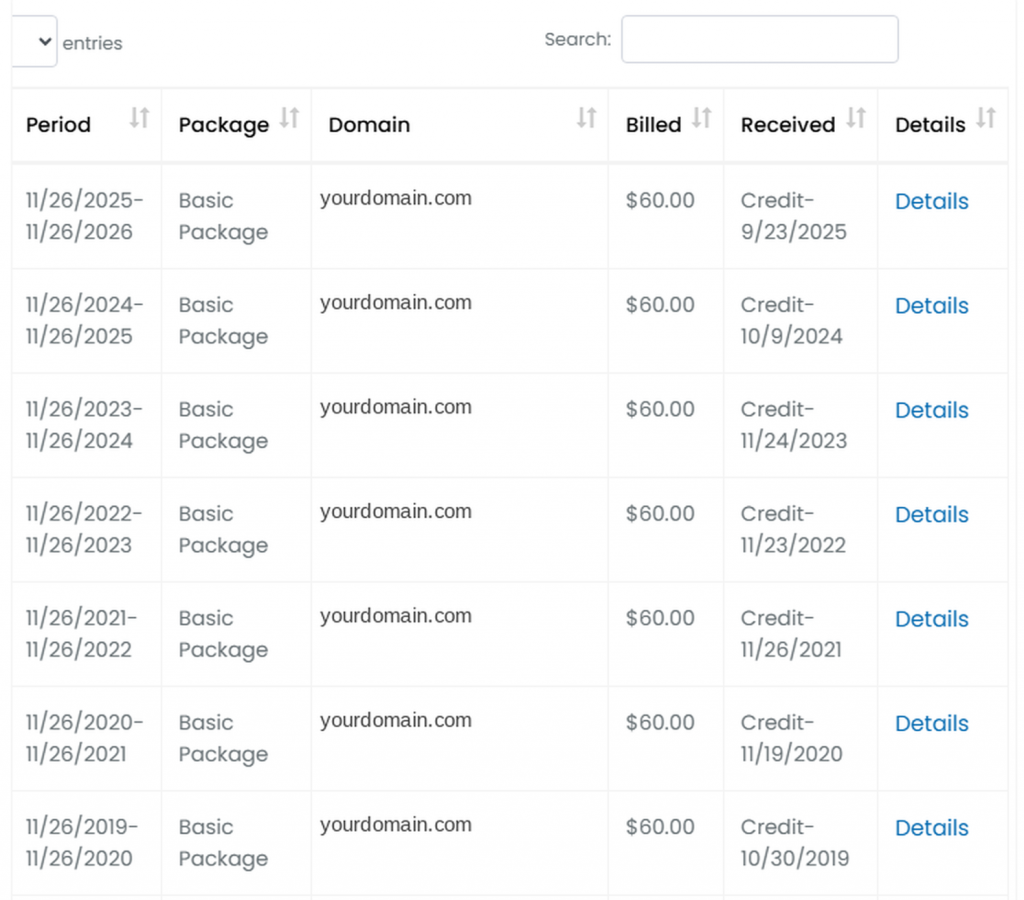
Every transaction on the account, most recent first. Anything unpaid shows here with nothing in the Received column.
It answers most billing questions without a ticket:
- What am I paying for? The Package column.
- When does it renew? The Period column shows the term and the next date.
- Did that payment go through? A date in Received means yes.
- Is anything outstanding? A row with no received date is unpaid, and can be paid from here.
If you have several domains or desktops on one account, they are all listed here together, which is the quickest way to see the whole picture.
Opening an invoice
Click Details on any row and the invoice opens.
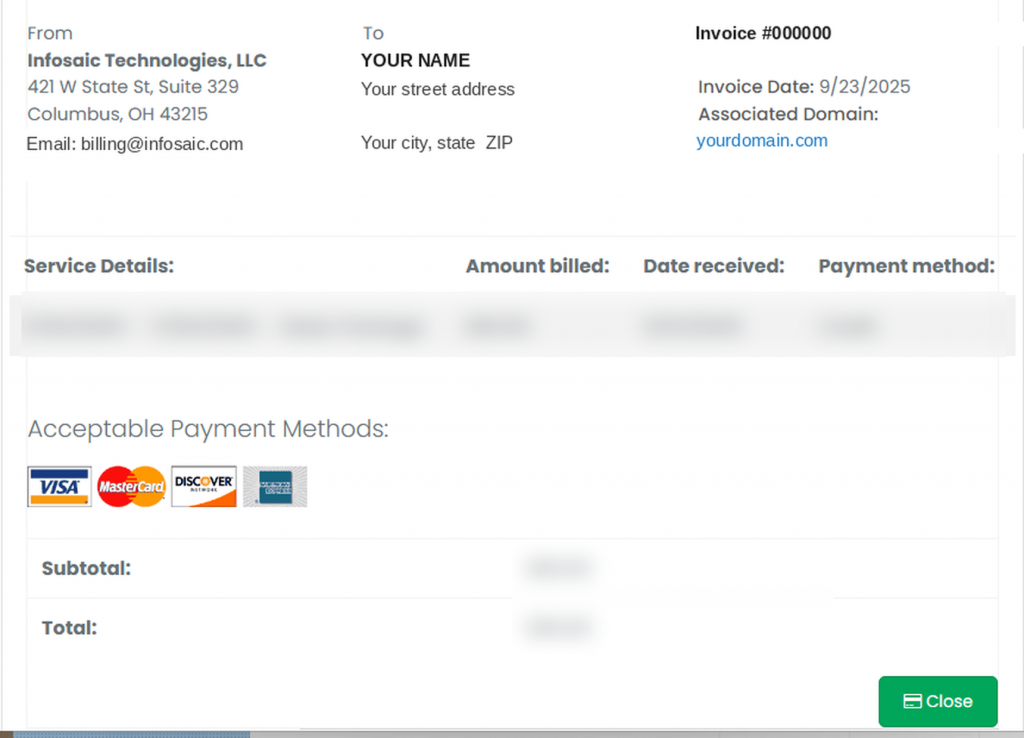
The invoice view: who it is from and to, the invoice number and date, what the charge covers, and the total. Accepted cards are Visa, MasterCard, Discover and American Express.
This is the document to send to whoever does your bookkeeping. It shows the invoice number, the invoice date, the associated domain, the service period, the amount and the payment method used.
If an invoice is still open, this is also where you pay it.
Setting up or changing automatic payment

Credit Card Update handles all of it. Entering a card there authorises us to bill it automatically — monthly or annually, depending on your package and term.
- To switch it on — enter the card details and save.
- To change the card — go to the same page and overwrite the details. There is nothing to remove first.
- To switch it off — choose the no autobill option. Invoices then have to be paid by hand; the service is not cancelled.
An expired card is the commonest cause of an unexpected suspension. When a new card arrives, update it here at the same time as your other subscriptions. It takes a minute and saves a support ticket — and possibly an outage.
Keeping billing trouble-free
- Check the contact email under Contact Information. Invoices and failed-payment notices go there, and a stale address is why most accounts lapse.
- Do not use an address on the affected domain as your only billing contact.
- Note the renewal date if you are on an annual term. One charge a year is easier to forget than twelve.
- Glance at the history occasionally to confirm payments are going through.
If a charge does not look right, open a support request quoting the invoice number and the date. That is enough for us to find it.
Questions and answers
Where do I see my Infosaic invoices?
Sign in at controlpanel.infosaic.com and open Billing Management and History, then Billing History / Make Payment.
How do I pay an open invoice?
From the same billing history page. Open invoices are listed and can be paid there.
How do I get a copy of an invoice?
Click Details on the relevant row in the billing history. The invoice opens with the number, date and amount.
Which cards do you accept?
Visa, MasterCard, Discover and American Express.
How do I update the card on file?
Open Credit Card Update under Billing Management and enter the new details. They replace the old card.
How do I stop automatic billing?
Choose the no autobill option on the Credit Card Update page. Invoices then have to be paid manually.
Does turning off automatic billing cancel my service?
No. The invoices still fall due; you just pay them yourself.
Why is there an open invoice when I have a card on file?
Usually the card has expired or been declined. Update it under Credit Card Update.
How often will I be billed?
Monthly or annually, depending on the package and term you signed up for.
Related articles
- A tour of your control panel: what everything does
- How to open a support request (and get it solved faster)
- Where to find your login details and connection address
- Your first 10 minutes with your cloud desktop
- How to restart your cloud desktop (and when you should)
- What is a VPS?
Still stuck?
Open a support request from your control panel — that is the fastest route, because it reaches the team who can already see your account and your desktop. You can also email [email protected].