

Short answer: Sign in at controlpanel.infosaic.com and click Open A Ticket in the top navigation. Fill in your name, email address and a description of the problem, then Submit. Raising it from the control panel is the fastest route, because the ticket arrives already attached to your account — we can see your desktop without asking which one you mean.
Applies to: All Infosaic accounts · cloud desktop and hosting customers
A support request from the control panel reaches the team who can already see your account. That is the whole reason to use it rather than email: nothing has to be explained twice, and nobody has to ask which machine you are talking about.
It takes about a minute. What you write in the message box makes the difference between one reply and four.
Where to click
Sign in at controlpanel.infosaic.com. Across the top you will see Open A Ticket and View All Tickets.
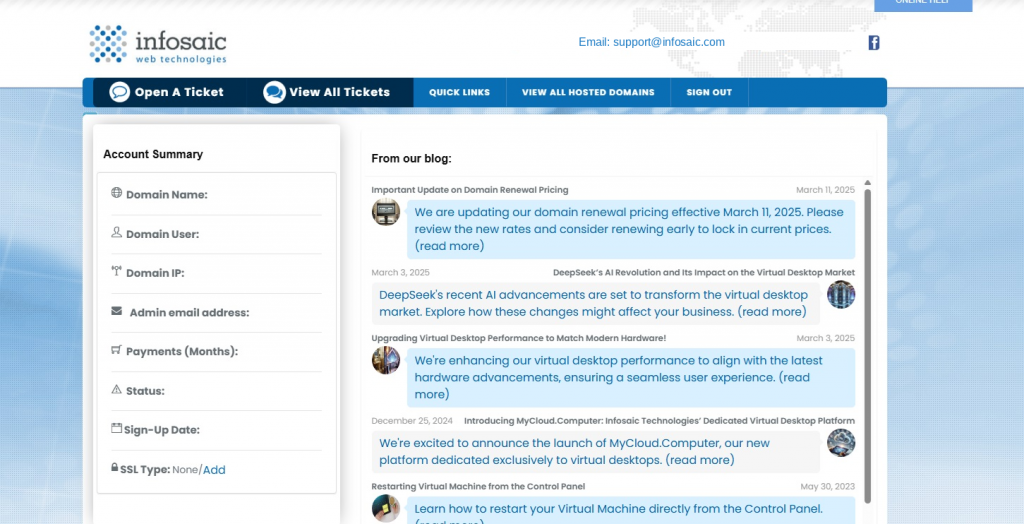
Open A Ticket is in the top navigation bar. View All Tickets, next to it, shows everything you have raised before.
There is also a Request Support shortcut further down the page under Quick Administrative Links. Both open the same form.
The form
It is deliberately short: first name, last name, email address, and the message.
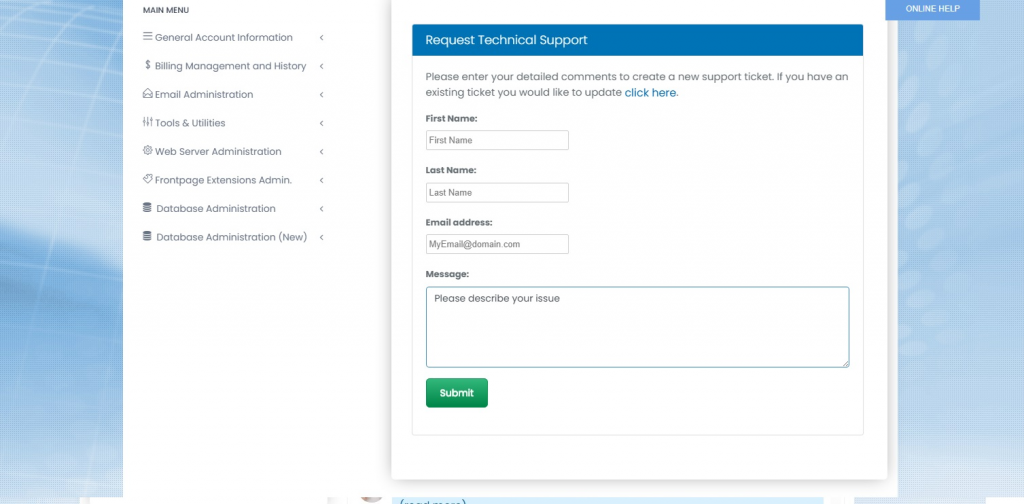
The whole form. Put the detail in the Message box — that is what saves a round trip.
- Enter your first and last name.
- Enter the email address you want the reply sent to. Use one you actually read, and not an address on the domain that is broken, if the problem is email.
- Describe the issue in the Message box.
- Click Submit.
If you are updating something you have already reported, use the click here link at the top of the form to add to the existing ticket rather than opening a second one. Two tickets about one problem slows it down, because two people pick them up.
If the problem is your email, do not give an email address on the affected domain. The reply will go into the mailbox that is not working. Use any other address you can read.
What to write in the Message box

Five things turn a slow ticket into a fast one. None of them takes long to write:
- What you were trying to do. “Print an invoice from the cloud desktop”, not “printing is broken”.
- What actually happened, including the exact wording of any error message. Copy it out or attach a screenshot.
- When it started, and whether it ever worked.
- How you were connected — the direct link in the browser, the Remote Desktop app, or One Click Access from the control panel. This one matters more than people expect: several problems only affect one route.
- What you have already tried. It stops us suggesting it back to you.
A ticket with those five things frequently gets a fix on the first reply. A ticket that says “it is not working” gets a question, and then a day has gone.
Things that speed it up
- One problem per ticket. Three unrelated issues in one message get handled at the speed of the slowest.
- Say if you are blocked. “I cannot invoice anybody until this works” is useful information, and it is not rude to say it.
- Include a screenshot of any error. It removes all guessing about the exact wording.
- Reply to the same ticket rather than opening a new one.
- Check the reply address. A perfect ticket with an unread address goes nowhere.
You can see everything you have raised, and its status, under View All Tickets.
The other ways to reach us
- The control panel ticket — first choice, always. It arrives attached to your account.
- Email [email protected] — fine, and the right option if you cannot sign in to the control panel at all. Include your domain or user name so we can identify the account.
If you cannot sign in and your email is affected, email us from any address you can reach and say which account it concerns. We would rather have an imperfect message than none.
Questions and answers
How do I open a support request with Infosaic?
Sign in at controlpanel.infosaic.com and click Open A Ticket in the top navigation, then fill in the form and Submit.
Why is a control panel ticket better than an email?
It arrives already attached to your account, so we can see your desktop and your settings without asking.
What do I need to put in the form?
Your first name, last name, an email address for the reply, and a description of the problem.
How do I add to a ticket I already opened?
Use the click here link at the top of the support form rather than opening a second ticket.
Where can I see my previous tickets?
Under View All Tickets in the top navigation.
What information makes a ticket get solved faster?
What you were doing, what happened including the exact error, when it started, how you were connected, and what you have already tried.
My email is broken. Which address should I give?
Any address that is not on the affected domain, otherwise the reply cannot reach you.
Can I email support instead?
Yes, [email protected]. Include your domain or user name so we can find the account. Use it especially if you cannot sign in.
Should I put several problems in one ticket?
No. One problem per ticket, or everything moves at the speed of the slowest item.
Related articles
- A tour of your control panel: what everything does
- Where to find your login details and connection address
- Billing: how to view invoices and update your card
- Browser session problems: a checklist
- RDP will not connect: how to fix it
- Your first 10 minutes with your cloud desktop
Still stuck?
Open a support request from your control panel — that is the fastest route, because it reaches the team who can already see your account and your desktop. You can also email [email protected].