

Short answer: Save your work, then use Restart Virtual Machine in your control panel. Wait a few minutes and connect again. A restart closes everything that was open, so treat it as the second thing you try, not the first.
Applies to: Infosaic cloud desktops and VPS · from the control panel
Restarting fixes a genuine class of problems: a program that will not close, a service that has wedged, a Windows update that is waiting to finish, a desktop that has stopped accepting connections without being obviously broken.
It also loses anything unsaved, which is why it is worth being deliberate about when to use it.
Try this first, before restarting

If you can still reach the desktop at all, these are gentler and keep your work:
- Close the stuck program with Task Manager. Press Ctrl+Shift+Esc inside the session, select the program and choose End task. In browser access, send Ctrl+Alt+Del from the on-screen keyboard instead.
- Sign out rather than restart. Signing out closes your programs but leaves Windows running, and it is quicker to come back from.
- Just disconnect and reconnect. If the problem is your connection rather than the desktop, this is all that is needed — and it keeps everything open.
How to restart your cloud desktop
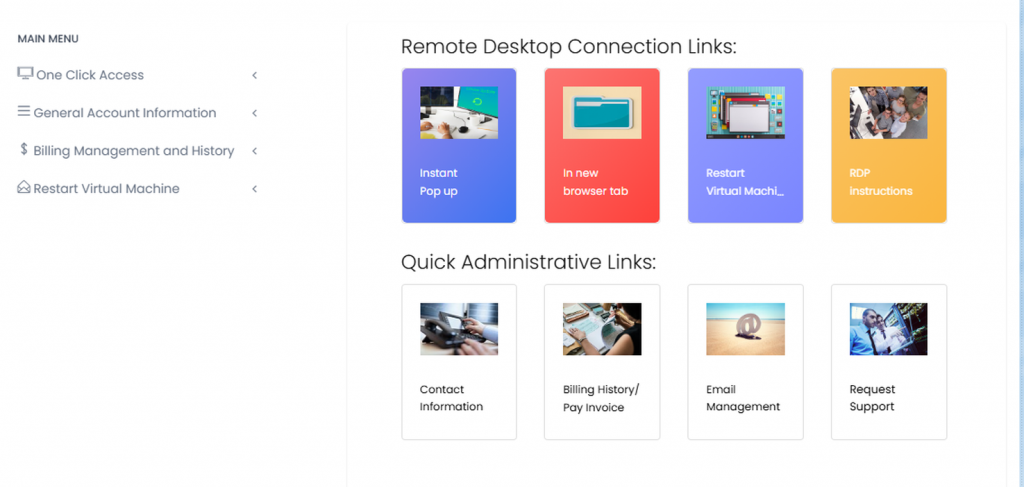
Restart Virtual Machine is in the main menu on the left, and also as a tile under Remote Desktop Connection Links. Either one takes you to the same place.
- Save everything you can reach. A restart from the control panel is the equivalent of holding the power button — unsaved work does not survive it.
- Tell anyone else who uses the same desktop, if you share it.
- Sign in to your control panel.
- Choose Restart Virtual Machine and confirm.
- Wait. The page tells you to allow up to 10 minutes for the machine to come back fully — it is often quicker, but pending Windows updates can use all of it.
- Connect again as usual.
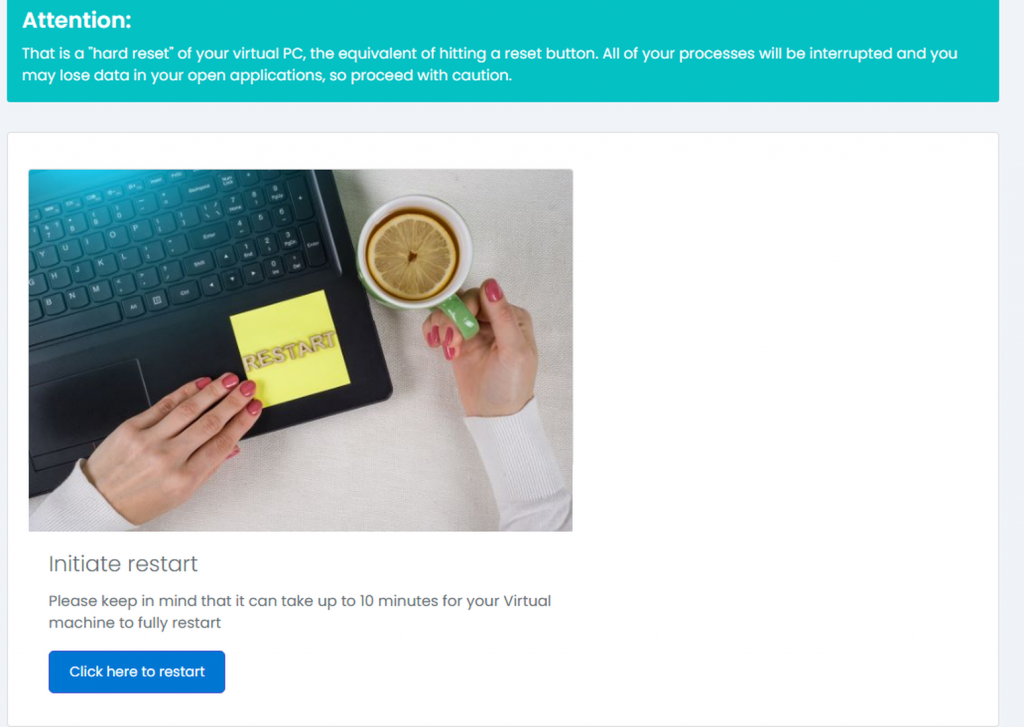
The confirmation page. Note the warning: this is a hard reset, so open applications are interrupted and unsaved work is lost. Click Click here to restart to go ahead.
If a connection attempt fails immediately after a restart, wait another minute and try again. Windows accepts remote connections a little after it looks ready.
When restarting is the right answer

- An installer asked for a restart. Do it — half-installed software causes stranger problems than the restart itself.
- The desktop accepts a connection but shows a black screen or never finishes signing in.
- A service has stopped — printing, a database, a line-of-business application that will not start.
- Everything is unusually slow and Task Manager shows nothing obvious using the processor.
- Windows updates are stuck at a stage that needs a reboot to finish.
If restarting does not help, say so. Open a support request from the control panel and mention that you have already restarted, when, and whether it made any difference at all. That single sentence removes the first reply from the conversation.
What a restart does not fix
Restarting the desktop cannot help with anything on your side of the connection:
- A network that blocks the RDP port — see RDP will not connect.
- A mistyped address or username.
- A slow or unstable internet connection — see working on a slow connection.
- A missing setting in your RDP client, such as printers or drives not being ticked.
Questions and answers
How do I restart my cloud desktop?
Sign in to the control panel and use Restart Virtual Machine. Save your work first, because the restart closes everything.
How long does a restart take?
Usually a few minutes. It can take longer if Windows has updates to install while shutting down or starting up.
Will I lose my work?
Anything unsaved will be lost. Saved files are untouched, and installed programs and settings are unaffected.
Is restarting from the control panel the same as restarting in Windows?
Not quite. The control panel restart acts on the machine itself, which is what you need when Windows is too stuck to restart itself.
Should I restart or sign out?
Sign out first if you can. It closes your programs but leaves Windows running and is faster to come back from.
Why can I not connect straight after a restart?
Windows accepts remote connections slightly after it appears to have finished starting. Wait another minute and try again.
Does restarting affect my billing?
No. Restarting is an ordinary operation and does not change your plan or your invoice.
What if the desktop does not come back?
Open a support request from the control panel, say when you restarted and what you see when you try to connect.
Related articles
- Disconnect or sign out? What happens to your cloud desktop
- How to open a support request (and get it solved faster)
- RDP will not connect: how to fix it
- How to send Ctrl+Alt+Del and other keys your browser blocks
Still stuck?
Open a support request from your control panel — that is the fastest route, because it reaches the team who can already see your account and your desktop. You can also email [email protected].