
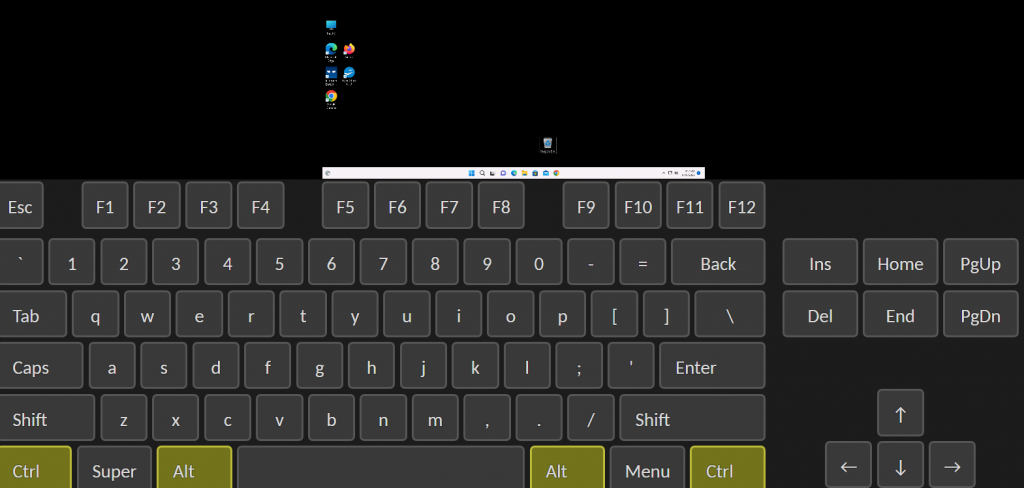
Short answer: press Ctrl + Alt + Shift to open the control menu, choose the on-screen keyboard, and click the keys there. Keys clicked on it go straight to Windows, bypassing whatever your own computer would have intercepted.
Applies to: browser access · Windows, Mac, Chromebook, Linux, phones and tablets
Some key combinations never reach your cloud desktop. You press them, and either nothing happens or something happens on your own computer instead. Ctrl+Alt+Del is the famous one, but the Windows key, the function keys and Ctrl+W can all behave the same way.
This is not a fault. Your own operating system and browser claim certain combinations before any web page can see them — deliberately, for security. The on-screen keyboard is the way around it.
Sending Ctrl+Alt+Del
- Click inside your desktop, then press Ctrl + Alt + Shift to open the control menu.
- Choose the on-screen keyboard. A full keyboard appears over the lower part of your session.
- Click Ctrl, then Alt. Both stay highlighted, so you can see exactly what the desktop thinks you are holding.
- Click Del. The Windows security screen appears, just as it would on a physical machine.
- Close the on-screen keyboard from the same menu when you are done.
Modifier keys latch rather than hold
You do not need to click and hold. Clicking Ctrl turns it on and it stays on until you click it again — which is what makes three-key combinations possible with one mouse.
Other keys worth knowing about
The Windows key. Usually opens the Start menu on your own computer instead of the cloud desktop. Send it from the on-screen keyboard.
Function keys. On many laptops F1 to F12 control brightness and volume unless you hold the Fn key. The on-screen keyboard sends the real function key every time.
Ctrl+W and Ctrl+T. Your browser takes these to close and open tabs. If you need them inside an application on your cloud desktop, click them on the on-screen keyboard.
A key that seems stuck. If the desktop behaves as though a modifier is held down, open the control menu and close it again. That releases anything the session thinks you are still pressing.
Over RDP, most of this goes away
The Remote Desktop app passes far more of your keyboard through directly, so the Windows key and function keys behave normally. Ctrl+Alt+Del is the exception on Windows, where Ctrl+Alt+End is the equivalent inside a session.
Questions and answers
How do I send Ctrl+Alt+Del to a remote desktop in a browser?
Open the control menu with Ctrl+Alt+Shift, choose the on-screen keyboard, then click Ctrl, Alt and Del on it. Your own computer intercepts that combination before it can reach the cloud desktop, so it has to be sent this way.
Why does the Windows key open my own Start menu?
Because your operating system claims it before the browser sees it. Send it from the on-screen keyboard instead, or connect with RDP where it passes through.
Do I have to hold the modifier keys down?
No. On the on-screen keyboard, clicking Ctrl or Alt latches it on and it stays highlighted until you click it again.
My function keys change the volume instead. What is wrong?
That is your laptop’s keyboard, not the cloud desktop. Either hold your Fn key, or click the function key on the on-screen keyboard.
What is the RDP equivalent of Ctrl+Alt+Del?
Ctrl+Alt+End inside a Remote Desktop session on Windows. It brings up the same Windows security screen.
The desktop acts as though a key is stuck down.
Open the control menu and close it again with Ctrl+Alt+Shift. That releases any modifier the session believes is still held.
Can I use the on-screen keyboard on a tablet?
Yes, and it is often the easier option there, because a touch keyboard usually has no function keys at all. Open the control menu with a right-swipe from the very edge of the screen.
Related articles
- The hidden menu: press Ctrl+Alt+Shift in your browser session
- Typing in another language on your cloud desktop
- What browser access cannot do (and what to use instead)
A key still not getting through?
Open a support request from your control panel — that is the fastest route, because it reaches the team who can already see your account. You can also email [email protected]. Tell us which key combination and which browser and device you are using.