
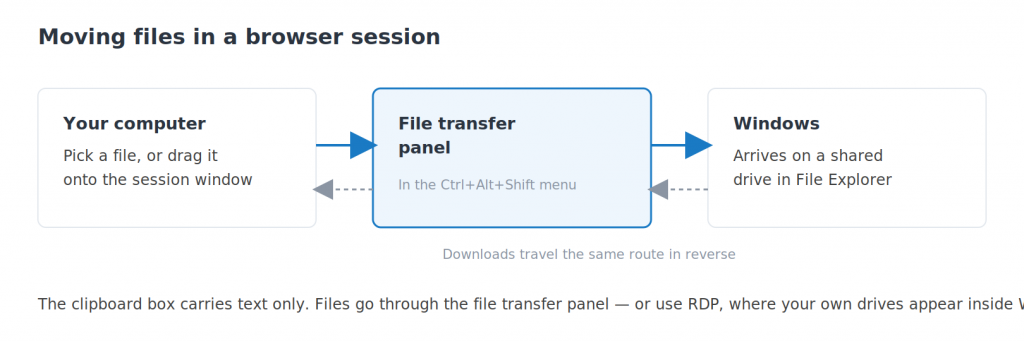
Short answer: press Ctrl + Alt + Shift to open the control menu and use the file transfer panel — or simply drag a file from your computer onto the session window. Uploads appear on a shared drive inside Windows, alongside your normal drives.
Applies to: browser access · Windows, Mac, Chromebook and Linux
Your cloud desktop is a different machine from the one in front of you, so files do not simply appear in both places. In a browser session there is a transfer panel that moves them across, in either direction.
It handles the common cases well — a document to work on, a report to send back. For moving a lot of files, or working directly from your own drives, RDP is the better tool.
Sending a file to your cloud desktop
- Click inside your desktop, then press Ctrl + Alt + Shift to open the control menu.
- Open the file transfer panel and choose the file from your own computer.
- Or skip the menu entirely and drag the file straight from your desktop onto the session window.
- Watch for the transfer to finish. Large files take a while; the panel shows progress.
- Open File Explorer inside Windows. The file is on a shared drive listed alongside the normal ones.
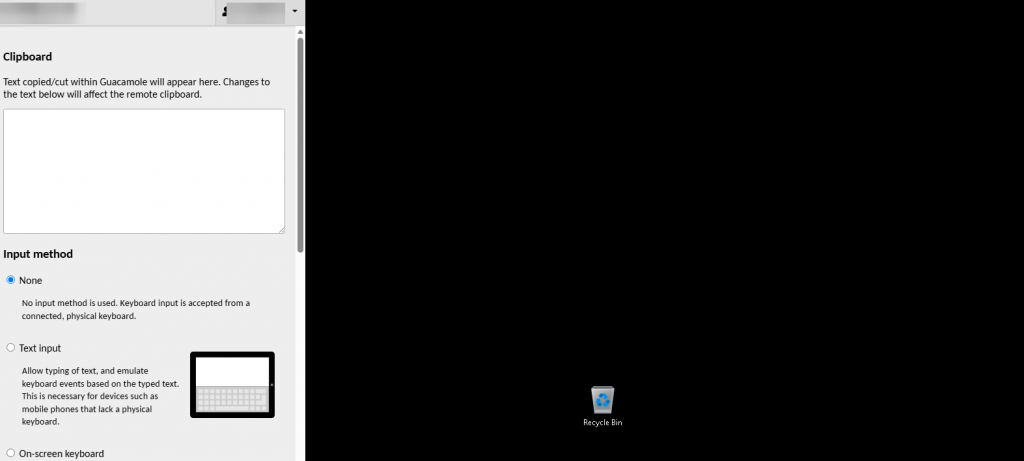
The file transfer panel sits in the same control menu as the clipboard, behind Ctrl+Alt+Shift.
Bringing a file back to your computer
The route is the same in reverse. Inside Windows, copy the file onto the shared drive, then use the transfer panel to download it to your own machine. Your browser saves it wherever downloads normally go.
If a file will not download, check that your browser is not silently blocking it — some block downloads from pages you have not visited before.
When to use RDP instead
The transfer panel is designed for occasional files. If you are moving dozens at a time, working from a USB drive, or want your own folders visible inside Windows all the time, connect with RDP.
Over RDP your local drives are mapped into the cloud desktop, so you can drag files around in File Explorer exactly as you would between two folders on one machine — no upload step at all.
Large files over a slow connection
Transfers run at the speed of your upload, which on most home connections is far slower than your download. A large file can take much longer than you expect. Compress it first, or use cloud storage and download it inside the desktop.
Questions and answers
Where do my uploaded files go?
Onto a shared drive that appears inside Windows next to your normal drives. Open File Explorer in your cloud desktop and you will see it listed. Move the file from there to wherever you actually want it.
Can I drag and drop a file into the session?
Yes. Drag it from your own desktop or a folder straight onto the browser window showing your session. That is usually quicker than going through the menu.
Is there a file size limit?
There is no small fixed limit, but very large files are slow and more likely to be interrupted, because transfers run at your connection’s upload speed. For anything substantial, use RDP or cloud storage.
Why can I not just copy and paste a file?
The clipboard box in a browser session carries plain text only. Files need the transfer panel. Over RDP you can copy and paste files normally.
Can I upload a whole folder at once?
Compress it to a zip file first, upload that, then extract it inside Windows. That is faster and far more reliable than sending many files individually.
My USB drive does not appear in the cloud desktop. Why?
Browser access cannot see devices attached to your computer. Upload the files you need through the transfer panel, or connect with RDP, where a USB drive can be mapped into Windows directly.
A transfer stopped part way. What now?
Start it again — transfers do not resume. If it keeps failing, the connection is probably dropping. Try a smaller file to confirm, then use RDP or cloud storage for the large one.
Related articles
- The hidden menu: press Ctrl+Alt+Shift in your browser session
- How to copy and paste between your computer and your cloud desktop
- What browser access cannot do (and what to use instead)
File will not move?
Open a support request from your control panel — that is the fastest route, because it reaches the team who can already see your account. You can also email [email protected]. Tell us the file size and which direction is failing.