

Short answer: On Windows, open Remote Desktop Connection, click Show Options, go to Display and tick Use all my monitors for the remote session. Both screens must be plugged in before you connect. Browser access is single-screen only.
Applies to: Windows and Mac RDP clients · Infosaic cloud desktops
Anyone who works across two screens locally will want the same on a cloud desktop, and Remote Desktop supports it properly — not a stretched window across both, but a genuine multi-monitor Windows desktop where you can maximise a window on one screen and leave the other alone.
It is one tick, but there are two things that catch people out: the setting is read at the moment the session starts, and browser access cannot do it at all.
How do I use two monitors with my cloud desktop?
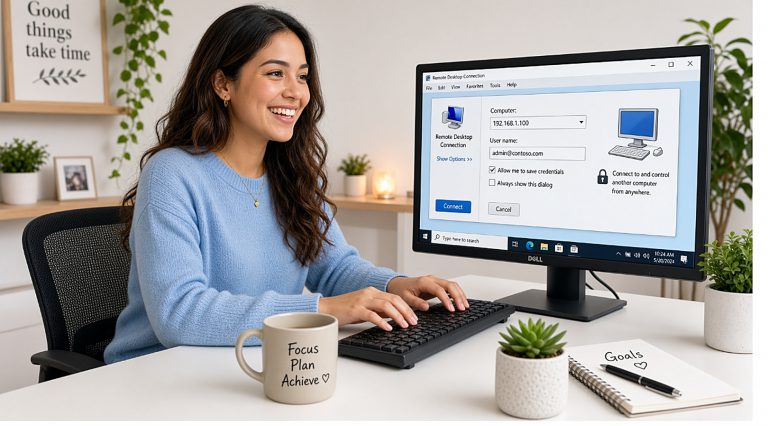
- Plug both monitors in first and make sure Windows on your own machine is already using them as an extended desktop, not a mirror.
- Disconnect from the cloud desktop if you are connected.
- Open Remote Desktop Connection and click Show Options.
- Go to the Display tab and tick Use all my monitors for the remote session.
- Go back to the General tab and click Save, so you do not have to do this every time.
- Connect. The session takes over both screens, and the cloud desktop now genuinely believes it has two monitors.
On a Mac, the equivalent lives under Edit → Display, where you choose to use all displays. The same rule applies — connect both screens first.
Using only one screen for the session

Sometimes taking over both screens is exactly what you do not want — you may want the cloud desktop on the left and your own email on the right.
Leave the use all my monitors box unticked and instead drag the display slider on the same tab to a size a little smaller than one screen. The session then runs in a window you can position wherever you like, and you keep your own desktop on the other monitor.
Many people end up using both arrangements: all monitors when they are working inside the cloud desktop all day, a single window when they are moving between the two machines.
Escaping a full-screen session: when the session covers both screens, the small connection bar at the top of the screen is how you minimise or close it. If it is hidden, move the mouse to the very top edge. Ctrl+Alt+Break also toggles full screen on Windows.
If the second screen stays blank
- You connected the monitor after starting the session. Disconnect and reconnect — the number of screens is fixed when the session begins.
- Your own machine is mirroring, not extending. Press Windows+P on your own computer and choose Extend before connecting.
- You are in a browser session. Browser access is one screen. Connect by RDP for multi-monitor.
- You saved the setting elsewhere. Each computer keeps its own connection settings.
- Very large combined resolutions are demanding. Two high-resolution screens send a lot of pixels; on a weak connection, reduce the colour depth on the Display tab or use one screen.
Questions and answers
Can I use two monitors with my cloud desktop?
Yes, over RDP. Tick Use all my monitors for the remote session on the Display tab, with both screens connected before you start.
Does browser access support two monitors?
No. A browser session occupies a single browser window on a single screen.
Why did my second screen go blank when I connected?
The session is running on one screen only. Either the option is not ticked, or the monitor was connected after the session started.
How many monitors can I use?
Remote Desktop supports more than two, but each additional screen adds to the amount of data being sent. Two is comfortable on an ordinary broadband connection.
How do I get out of a full-screen session covering both screens?
Use the connection bar at the top of the screen, or press Ctrl+Alt+Break to toggle full screen.
Can I use the cloud desktop on one screen and my own computer on the other?
Yes. Leave the all-monitors option unticked and set the session to a window slightly smaller than one screen.
Do my monitors have to be the same size?
No, but matched resolutions give the tidiest result. Very different sizes can leave unusable areas at the edges.
Is multi-monitor slower?
It sends more data, so on a weak connection it can feel less responsive. Lowering the colour depth on the Display tab usually helps more than anything else.
Related articles
- What browser access cannot do (and what to use instead)
- What you need to connect to your cloud desktop by RDP
- How to enable sound and microphone on your cloud desktop
- Browser access or RDP: which should you use?
Still stuck?
Open a support request from your control panel — that is the fastest route, because it reaches the team who can already see your account and your desktop. You can also email [email protected].