
Short answer: Set your RDP client to play remote audio on this computer before you connect, and sound from the cloud desktop comes out of your own speakers or headphones. Browser access carries no audio at all. For calls you also need the microphone option, which is a separate tick.
Applies to: Windows, Mac, iPad, Android and Chromebook RDP clients · Infosaic cloud desktops
Audio is the setting people discover late, usually the first time a training video or a notification chime turns out to be silent. The cloud desktop is producing the sound quite happily — it just has not been told to send it to you.
Turning it on takes about fifteen seconds, and like every other redirection setting it has to be done while you are disconnected.
How do I turn sound on in a remote desktop session?
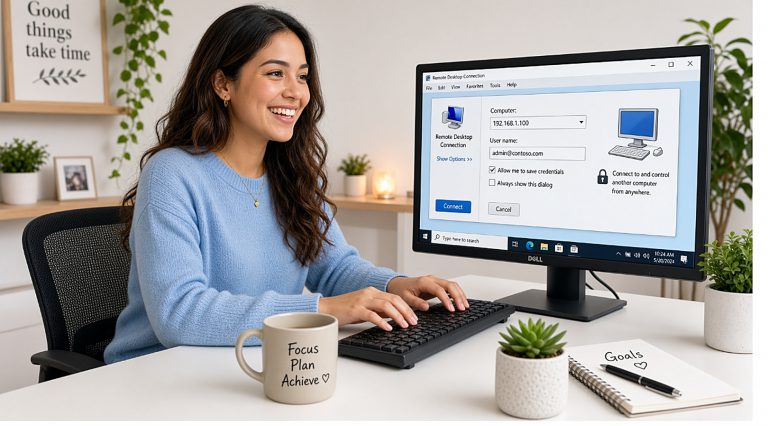
On Windows: open Remote Desktop Connection, click Show Options, go to the Local Resources tab and click Settings under Remote audio. Choose Play on this computer. Save the connection.
On a Mac: right-click your tile in Windows App, choose Edit, open Devices & Audio and set Play sound to on this device.
On iPad, Android and Chromebook: audio plays through the device by default. There is usually nothing to change.
Reconnect, then check the volume control inside Windows on the cloud desktop as well as the one on your own machine. Two volume controls now sit between the program and your ears, and either can be muted.
How do I use a microphone for calls?

Playing sound and capturing sound are two separate switches. If your voice is not being heard, the microphone one is the one that is off.
On Windows, in that same Remote audio settings box there is a Remote audio recording section — set it to Record from this computer. On a Mac, tick Microphone under Devices & Audio.
Even with both on, a video call hosted inside a remote desktop session is doing something awkward: your voice goes to the data centre and comes back again. It works, but for a call that matters, run the meeting app on your own machine and use the cloud desktop only for the documents you are sharing. It sounds better and it uses less bandwidth.
Better sound quality on a good connection: Windows Remote Desktop reduces audio quality automatically when it thinks the link is weak. If music or a video sounds thin on a fast connection, set the connection speed on the Experience tab to a high-bandwidth option instead of leaving it on automatic.
If there is still no sound
- Check both volume controls. The one inside Windows on the cloud desktop and the one on your own device. Also check the per-application mixer inside Windows — a single program can be muted on its own.
- Reconnect. Audio is negotiated when the session starts, so a setting changed mid-session does nothing until you reconnect.
- Check you are not in a browser session. Browser access carries no audio. If you need sound, connect by RDP.
- Plug the headphones in before connecting. Changing your audio device mid-session can leave the session pointing at the old one.
- Look at Sound settings inside Windows and confirm the output device is the remote audio device rather than something else.
Questions and answers
How do I get sound from my cloud desktop?
Set remote audio to play on this computer in your RDP client before connecting. On Windows that is under Local Resources, on a Mac under Devices and Audio.
Does browser access have sound?
No. Browser sessions carry the screen, the keyboard and the mouse but not audio. Connect by RDP if you need to hear anything.
Why can people not hear me on a call?
Microphone redirection is a separate setting from playback. Turn on remote audio recording on Windows, or tick Microphone on a Mac.
Why does music sound poor?
Remote Desktop lowers audio quality when it detects a weak link. On a fast connection, set the Experience tab to a high-bandwidth option rather than automatic.
Can I run video calls inside my cloud desktop?
You can, but the audio makes a round trip to the data centre and back. For important calls, run the meeting app on your own machine and share documents from the cloud desktop.
I changed the setting and nothing happened.
Audio is negotiated at the start of a session. Disconnect and reconnect for the change to take effect.
Can I use Bluetooth headphones?
Yes. Pair and select them on your own device before you connect, so the session attaches to the right output.
Can sound play on the server instead of on my device?
The option exists but is rarely useful — nobody is standing next to the server to hear it. Leave it set to play on your own computer.
Related articles
- What browser access cannot do (and what to use instead)
- How to print from your cloud desktop to your own printer
- What you need to connect to your cloud desktop by RDP
- Browser access or RDP: which should you use?
Still stuck?
Open a support request from your control panel — that is the fastest route, because it reaches the team who can already see your account and your desktop. You can also email [email protected].