
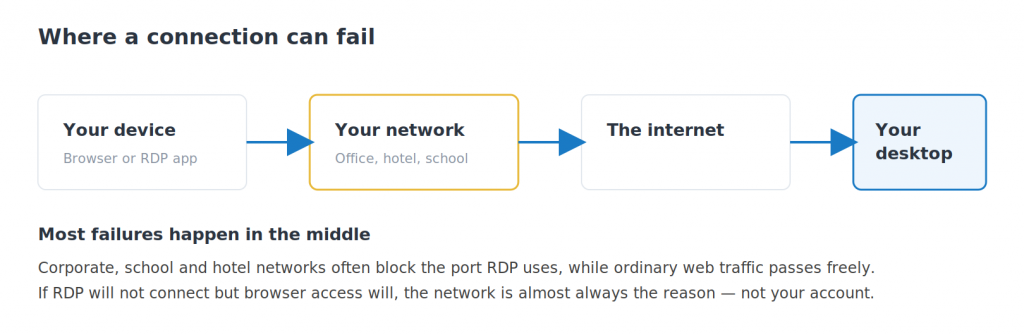
Short answer: try browser access first. If that works and RDP does not, the problem is almost certainly your network blocking the port RDP uses — common on office, school and hotel connections. Your account and your desktop are fine.
Applies to: RDP connections · Windows, Mac, iPhone, iPad, Android, Chromebook and Linux
Almost every failed RDP connection comes down to one of four things: the wrong credentials, a blocked network, a desktop that needs a restart, or a certificate warning that looks alarmer than it is. Work through them in that order and you will usually be connected within a few minutes.
Start here: does browser access work?
This single test tells you more than anything else. Sign in to your control panel and open your desktop in a browser.
If browser access works but RDP does not, your desktop is running perfectly and your credentials are fine. The problem is between your device and the server — nearly always a network blocking RDP.
If neither works, the issue is more likely your account, your password or the desktop itself. Skip to the restart section below.
“Your credentials did not work”
The most common cause by far is using the control panel login instead of the Windows login. They are two separate accounts. Your control panel sign-in manages billing and support; a different username and password get you into the desktop.
Check your welcome email for the Windows credentials. If your device has saved the wrong ones, delete the saved connection and set it up again rather than editing it — saved passwords are sticky.
The connection times out or never opens
If nothing happens at all, and browser access works, this is a network block. Corporate, university, school and hotel networks routinely block the port RDP uses while leaving normal web traffic alone.
Test it by trying from a different network — a phone hotspot is the quickest way. If it connects over the hotspot, you have your answer.
Working on a network that blocks RDP
Use browser access while you are on it. It runs over ordinary web traffic and almost always gets through. This is exactly why both options exist.
A certificate warning appears
Your device warns that it cannot verify the identity of the remote computer. This is expected when connecting directly to your own server, and the connection is still encrypted.
Accept it, and tick the box to remember your choice so you are not asked every time.
A black screen, or a session that freezes
If you connect but get a black screen, or the desktop stops responding, disconnect and connect again first — that clears most of these.
If it persists, restart the machine from your control panel. A restart takes up to about ten minutes and clears a stuck session cleanly. Save anything you can first, though a frozen session may not let you.
Questions and answers
Why does RDP work at home but not at the office?
Your office network is almost certainly blocking the port RDP uses. This is a common security policy and nothing to do with your account. Use browser access while you are on that network.
My username and password are rejected but I know they are right.
You are probably using your control panel login rather than the Windows one. They are separate accounts with separate passwords. Check your welcome email, or open a support request and we will reset the Windows password.
Should I worry about the certificate warning?
No. It appears because you are connecting directly to your own server rather than through a service with a published certificate. The connection is encrypted either way. Accept it and tick the box to remember it.
I get a black screen after signing in. What causes that?
Usually a session that did not close cleanly last time. Disconnect and reconnect first; if that does not clear it, restart the machine from your control panel.
Will restarting lose my work?
Anything unsaved in open applications will be lost, just as with a normal computer restart. Save first if the session still responds. Files already saved to disk are unaffected.
How long does a restart take?
Up to about ten minutes. Wait the full time before trying to reconnect — connecting too early often looks like another failure.
What should I tell support if none of this helps?
Which device and app you are using, whether browser access works, the exact wording of any error, and what you have already tried. That is usually enough for us to answer on the first reply rather than the third.
Related articles
- What you need to connect to your cloud desktop by RDP
- How to open your cloud desktop in a web browser
- Browser access or RDP: which should you use?
Still not connecting?
Open a support request from your control panel — that is the fastest route, because it reaches the team who can already see your account. You can also email [email protected]. Tell us whether browser access works, which device you are on, and the exact error.