
Short answer: Set up your printers, drives, sound and monitors once, then click Save on the General tab of Remote Desktop Connection. Better still, click Save As to create a .rdp file on your desktop — double-clicking it connects with every setting already correct.
Applies to: Windows Remote Desktop Connection · Mac, iPad and Android clients · Infosaic cloud desktops
Nearly every “my printer disappeared” and “my drives are not there today” message has the same cause: the settings were ticked for one session and never saved. Remote Desktop Connection does not save automatically, and closing it discards everything you changed.
Two minutes of housekeeping makes the problem permanent-fixed rather than daily-repeated.
How do I stop re-entering my settings every time?
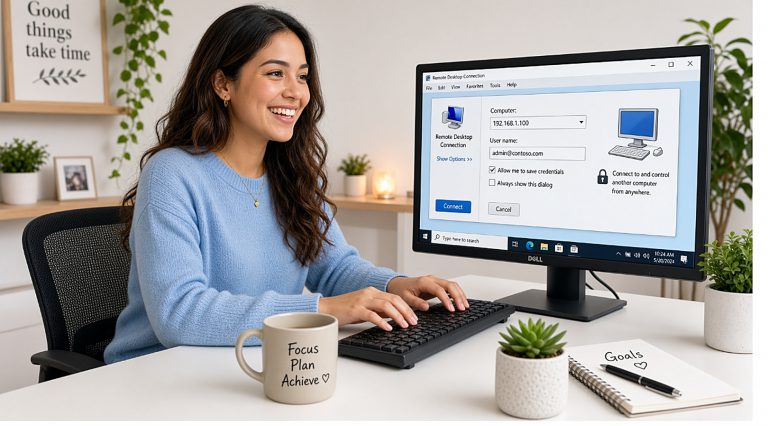
- Open Remote Desktop Connection and click Show Options.
- Fill in the Computer address and User name on the General tab.
- Go through the other tabs and set everything you want: Local Resources for printers, clipboard, sound and drives; Display for resolution and monitors; Experience for connection speed.
- Come back to the General tab.
- Click Save to keep it as your default, or Save As to write a .rdp file wherever you like.
Do this before you connect. Settings are read when the session starts, so a change made mid-session does nothing until next time anyway.
Why a .rdp file is worth the extra click

- One double-click connects, with printers, drives and monitors already right.
- Pin it to the taskbar or Start menu and it behaves like an application.
- Keep several. A common pattern is one file for the office with all monitors and drives, and another for travelling with a small window and low-bandwidth settings.
- Copy it to a new laptop and the setup is done — no re-ticking anything.
- Share it with a colleague on the same desktop. It contains settings and the address, not your password.
Only open .rdp files you made yourself. A .rdp file tells your computer which machine to connect to and which of your devices to share with it. One that arrives by email from someone you do not know is a genuine risk, in exactly the way an unexpected attachment is.
Saving your password, and whether you should
Ticking Allow me to save credentials stores the password in Windows Credential Manager so you are not asked each time.
- On your own machine: reasonable, provided the machine itself has a password or PIN.
- On a shared or borrowed machine: no. Anyone who sits down at it is one double-click from your desktop.
- To remove a saved password, open the connection, click Show Options, and use the delete link under the user name.
On other platforms the same idea applies: Windows App on Mac, iPad and Android stores each desktop as a saved tile with its own settings, so there is nothing extra to do beyond editing the tile once.
Questions and answers
Why do my Remote Desktop settings not stick?
Because they were never saved. Click Save on the General tab after changing them; closing the window discards everything.
What is a .rdp file?
A small file holding the address and all the settings for one connection. Double-clicking it connects with everything already configured.
Where should I keep a .rdp file?
Anywhere convenient — the desktop, or pinned to the taskbar. You can keep several for different situations.
Can I have different settings for home and travelling?
Yes. Save two .rdp files: one with all monitors and drives for the desk, one with a small window and low-bandwidth settings for the road.
Does a .rdp file contain my password?
Not the password itself. It holds the address and settings; a saved password lives separately in Windows Credential Manager.
Is it safe to open a .rdp file someone sent me?
Treat it like any unexpected attachment. It specifies which machine to connect to and which of your devices to share, so only open files you made or trust completely.
Should I save my password?
On your own protected machine it is reasonable. On a shared or borrowed computer, do not.
How do I remove a saved password?
Open the connection, click Show Options, and use the delete link beneath the user name on the General tab.
Related articles
- Windows: connect with Remote Desktop Connection
- How to copy files between your computer and your cloud desktop over RDP
- How to print from your cloud desktop to your own printer
- Working on a slow internet connection: settings that actually help
Still stuck?
Open a support request from your control panel — that is the fastest route, because it reaches the team who can already see your account and your desktop. You can also email [email protected].