

Short answer: Set the Experience tab of your RDP client to a slow connection speed, turn off the desktop background, font smoothing, animations and visual styles, and drop the colour depth to 16 bit. A cloud desktop on a weak connection should still feel usable — it just has to stop sending pretty pixels.
Applies to: Windows, Mac, iPad, Android and Chromebook RDP clients · browser access · Infosaic cloud desktops
Remote desktops are unusually tolerant of slow internet, because only the changed parts of the screen travel over the wire. What they are not tolerant of is latency — the delay between pressing a key and seeing it appear. A hotel Wi-Fi with 3 Mbps and low latency feels fine. A satellite link with 50 Mbps and a half-second delay feels awful.
That distinction matters, because the fixes are different. Below: the settings that reduce bandwidth, and the habits that make latency bearable.
Which settings make a slow connection usable?
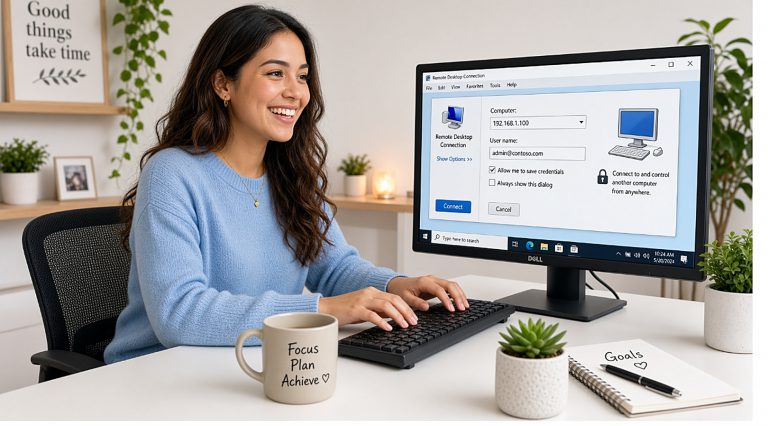
On Windows, open Remote Desktop Connection, click Show Options and go to the Experience tab.
- Change Choose your connection speed from Detect connection quality automatically to a low-bandwidth option such as modem or low-speed broadband. This unticks most of the expensive features in one go.
- Make sure Desktop background, Font smoothing, Desktop composition, Menu and window animation and Visual styles are all unticked.
- Leave Persistent bitmap caching ticked — it stores parts of the screen locally and genuinely helps.
- On the Display tab, set the colour depth to High Color (16 bit) and reduce the resolution one step.
- Tick Reconnect if the connection is dropped on the Experience tab, so a brief dropout heals itself.
- Save the connection, then reconnect.
The result looks plainer — a flat coloured background instead of a photograph, sharper-edged fonts — and responds noticeably faster.
Habits that help more than any setting

- Use a smaller session window. Fewer pixels is the single most effective change on a bad link.
- Do not watch video inside the session. Open the video on your own machine instead. Full-motion video is exactly what remote desktop protocols are worst at.
- Download inside the cloud desktop, not across the link. The cloud desktop usually has a far better connection than you do. Pull a large file down there, work on it there.
- Prefer a cable, or sit nearer the router. Wi-Fi variability causes more remote-desktop complaints than raw speed does.
- Try a phone hotspot. A single-bar hotel Wi-Fi shared by four hundred guests is frequently worse than 4G.
Disconnecting is safe. If the connection is hopeless, close the session. Your programs stay running on the cloud desktop and nothing is lost — come back when the network is better and everything is where you left it.
Is it my connection or the desktop?
Two quick tests separate the two:
- Is the mouse pointer smooth but the programs slow? The connection is fine and something on the desktop is busy. Open Task Manager inside Windows and look at what is using the processor.
- Is the mouse pointer itself laggy? That is the network. No setting inside Windows will fix it — work on the connection or the Experience settings above.
If the desktop itself is consistently slow on a good connection, open a support request from the control panel and say what was running at the time.
Questions and answers
How much internet speed do I need for a cloud desktop?
For ordinary office work, a few megabits per second is enough. Consistency and low latency matter far more than headline speed.
Why does my session lag even though my internet is fast?
Latency, not bandwidth. A long round trip makes typing feel delayed no matter how fast the link is. Wi-Fi interference and congested public networks are common causes.
What is the fastest single change I can make?
Set the Experience tab to a slow connection speed. It turns off the background, animations and visual styles in one action.
Should I lower the resolution?
Yes, on a bad link. Fewer pixels means less to send, and it is usually more effective than any individual visual setting.
Can I watch video inside my cloud desktop?
It works on a good connection but it is the hardest thing to send. On a weak connection, play the video on your own machine instead.
Will disconnecting lose my work?
No. Disconnecting leaves your programs running on the desktop. Reconnect and everything is as you left it.
Does browser access work better on slow internet?
Not usually. It has fewer settings to tune, so a well-configured RDP session normally copes better with a poor link.
Is a mobile hotspot good enough?
Often yes, and frequently better than crowded hotel or cafe Wi-Fi. Keep the session window small if you are on a metered plan.
Related articles
- RDP will not connect: how to fix it
- Disconnect or sign out? What happens to your cloud desktop
- How to use two monitors with your cloud desktop
- What you need to connect to your cloud desktop by RDP
Still stuck?
Open a support request from your control panel — that is the fastest route, because it reaches the team who can already see your account and your desktop. You can also email [email protected].