
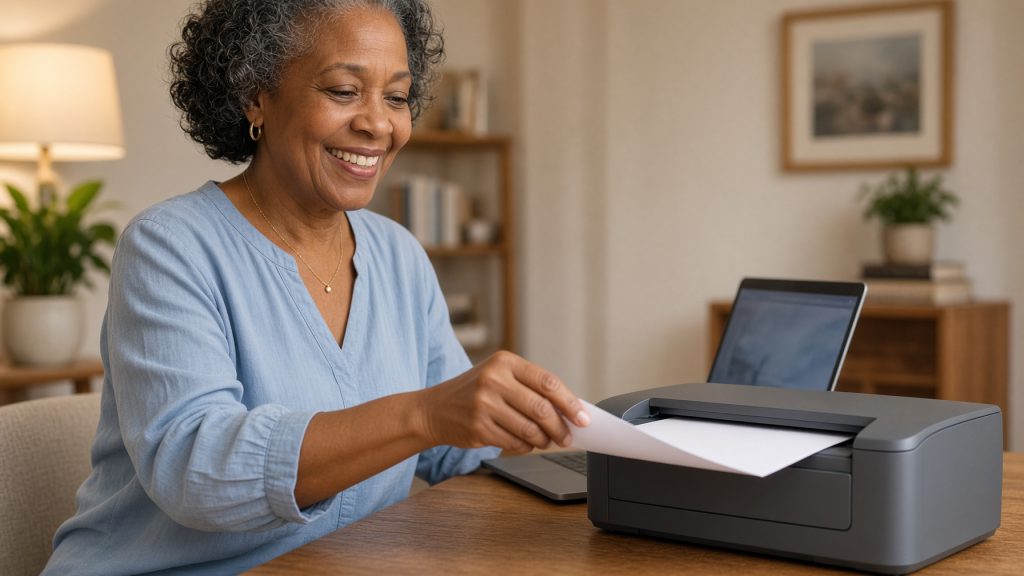
Short answer: Tick Printers in your RDP client before you connect. Your own printers then appear in the print dialog inside Windows, and the page comes out of the printer sitting next to you. Browser access cannot do this — print to PDF there instead.
Applies to: Windows, Mac, iPad, Android and Chromebook RDP clients · Infosaic cloud desktops
Printing from a machine in a data centre to a printer in your own room sounds like it should be complicated. It is not. Remote Desktop has carried printers since the beginning, and once the setting is ticked the cloud desktop simply lists your printers alongside its own.
The paper comes out where you are. Nothing is sent anywhere else, and nothing needs to be installed on the cloud desktop.
How do I print from my cloud desktop to my own printer?
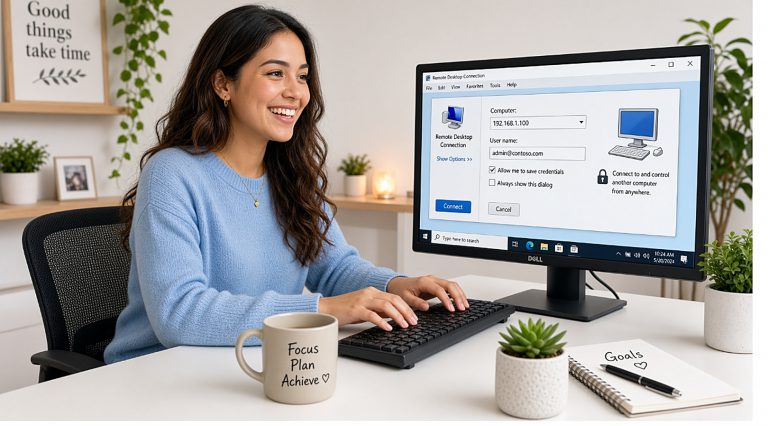
Do this while you are disconnected — printers are attached when the session starts.
- Windows. Open Remote Desktop Connection, click Show Options, go to Local Resources and tick Printers. Click Save so it sticks.
- Mac. Right-click your tile in Windows App, choose Edit, open Devices & Audio and tick Printers.
- Connect, open whatever you want to print, and press Ctrl+P.
- In the printer list, choose the entry with your printer’s name followed by something like (redirected 2). That is your printer.
- Print. The job travels back down the same connection and prints where you are sitting.
Why is my printer not in the list?

Four causes account for nearly every case:
- You ticked the box during a session. Disconnect and reconnect. Printers are attached at the start.
- The printer is not working on your own computer either. Print a test page locally first. Redirection can only forward a printer that already works.
- The driver is unusual. All-in-one home printers with elaborate drivers sometimes fail to map. Add your printer on your own machine using a generic driver as well, and use that one for redirected printing.
- You are using browser access. Browser sessions cannot see your printers at all. That is a limitation of the browser, not of your account.
The universal fallback: print to Microsoft Print to PDF inside the cloud desktop, save the PDF to a redirected drive or cloud storage, then print it from your own computer. It works from every device, including browser sessions and phones, and it never depends on a driver.
Printing at an office with a network printer
If the printer is a shared network printer and your cloud desktop is joined to the same network, it can often be added directly on the cloud desktop — no redirection needed. Most Infosaic customers are not in that situation, so redirection or print-to-PDF is the normal answer.
For a printer that lots of people share, print-to-PDF plus a shared folder is usually less trouble than trying to redirect one person’s connection.
Questions and answers
Can I print from my cloud desktop to a printer at home?
Yes. Tick Printers in your RDP client before connecting, and your home printers appear in the Windows print dialog with the word redirected after the name.
Why does my printer say redirected after its name?
That marks it as a printer on your own computer being made available inside the session. It is the one to choose.
Can I print from a browser session?
No. Browser access cannot reach your printers. Print to PDF inside the desktop, download the file, and print it locally.
Do I need to install a driver on the cloud desktop?
Usually not. Windows maps most printers automatically. Unusual all-in-one drivers are the exception, and a generic driver on your own machine normally solves it.
Why did my printer disappear halfway through the day?
The session probably reconnected. Printers are attached at the start of a session, so a reconnection re-reads the list from your current settings.
Can I print from an iPad or phone?
Print to PDF inside the cloud desktop, save it, then print the PDF from the device. Direct printing from the session to a mobile printer is not something to rely on.
Is my document sent anywhere else to be printed?
No. The print job travels down the same encrypted connection back to your own computer, which sends it to your printer.
Can I set my own printer as the default inside Windows?
Yes, in Windows settings on the cloud desktop, but the default may reset when the redirected printer is re-created on a new session. Choosing it in the print dialog each time is more predictable.
Related articles
- What browser access cannot do (and what to use instead)
- How to copy files between your computer and your cloud desktop over RDP
- What you need to connect to your cloud desktop by RDP
- Mac: connect to your cloud desktop with Windows App
Still stuck?
Open a support request from your control panel — that is the fastest route, because it reaches the team who can already see your account and your desktop. You can also email [email protected].