
Short answer: Tick your own drives in the RDP client before you connect, and they appear inside Windows under This PC as redirected drives and folders. From there it is ordinary drag-and-drop in File Explorer — no uploading, no emailing files to yourself.
Applies to: Windows, Mac, iPad, Android and Chromebook RDP clients · Infosaic cloud desktops
Getting files in and out is the thing new customers ask about first, and the answer over RDP is much better than most people expect. You do not upload anything. Your own folders are simply shown to the cloud desktop as if they were drives plugged into it, and Windows treats them like any other drive.
The one catch is that this is switched off by default, and it can only be switched on before a session starts. Change the setting while disconnected, then reconnect.
How do I share my computer’s drives with the cloud desktop?
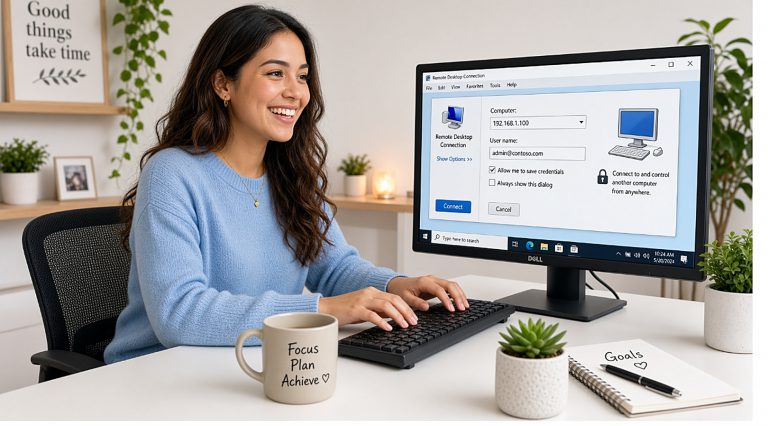
On Windows, open Remote Desktop Connection, click Show Options, go to the Local Resources tab and click More under Local devices and resources. Expand Drives and tick the ones you want — C:, a USB stick, or all of them.
On a Mac, right-click your desktop tile in Windows App, choose Edit, open the Folders tab, tick Redirect folders and add the folders you want with +.
On iPad, Android and Chromebook, look for a storage or folder redirection option in the connection settings and point it at your Downloads folder.
Then click Save so you never have to do it again, and connect.
Where do the files show up inside Windows?
Open File Explorer on the cloud desktop and click This PC. Below the normal drives you will find a section called Redirected drives and folders, with entries named something like C on MYLAPTOP.
Those are your own folders. Open one, and you are browsing your own machine from inside the cloud desktop.
- Open two File Explorer windows — one on the redirected drive, one on the cloud desktop’s own Documents folder.
- Drag files from one to the other, in either direction.
- Watch the copy dialog. Large files across a slow link take real time; the transfer runs at the speed of your internet connection, not the speed of a local disk.
Which method should I use for which job?

- A few documents, now: redirected drives. Fastest to set up, works every time.
- Files you want on both machines permanently: a cloud storage folder signed in on both sides. Nothing to remember, nothing to copy.
- Something enormous: upload it to cloud storage from your own machine, then pull it down inside the cloud desktop, which usually has a much faster connection than your office does.
- You are on a borrowed computer with no RDP client: use the file transfer panel in browser access.
Plug in the USB stick first. Drives are shared at the moment the session starts. A stick plugged in afterwards will not appear until you reconnect — unless you ticked the option to include drives you plug in later.
If the drives do not appear
- You changed the setting during a session. Disconnect and reconnect — the list of shared drives is fixed when the session starts.
- You saved the setting on a different computer. Each machine has its own connection settings.
- You are looking in the wrong place. They are under This PC, not in Quick Access, and they are named after your computer rather than the drive letter you expect.
- Your workplace blocks redirection. Some managed laptops disable it by policy. Cloud storage is the way round it.
Questions and answers
How do I copy files from my computer to my cloud desktop?
Share your drives in the RDP client before connecting, then drag files in File Explorer between the redirected drive and the cloud desktop. Nothing is uploaded through a web page.
Where are redirected drives in Windows?
Open File Explorer, click This PC, and scroll to the section headed Redirected drives and folders. Entries are named after your own computer.
Do I have to turn this on every time?
No. Save the connection after ticking the option and it applies to every future session from that computer.
Why is copying so slow?
The files travel over your internet connection, not over a local cable. Large transfers are limited by your upload speed, which is usually much lower than your download speed.
Can I share a USB stick?
Yes. Plug it in before you connect and tick it in the drives list, or tick the option that includes drives connected later.
Is it safe to share my whole C: drive?
It is your own desktop at the other end, so the risk is low, but sharing only the folders you actually need is a sensible habit — especially on a shared or work machine.
Can I do this from an iPad or Android tablet?
To a limited extent. The mobile apps expose local storage rather than full drives. For heavy file work, cloud storage on both sides is easier.
What if my company laptop blocks drive redirection?
Use a cloud storage folder signed in on both machines, or the file transfer panel in browser access. Both avoid the redirection channel entirely.
Related articles
- Uploading and downloading files in your browser session
- Copy and paste over RDP: why it just works
- What you need to connect to your cloud desktop by RDP
- What browser access cannot do (and what to use instead)
Still stuck?
Open a support request from your control panel — that is the fastest route, because it reaches the team who can already see your account and your desktop. You can also email [email protected].