
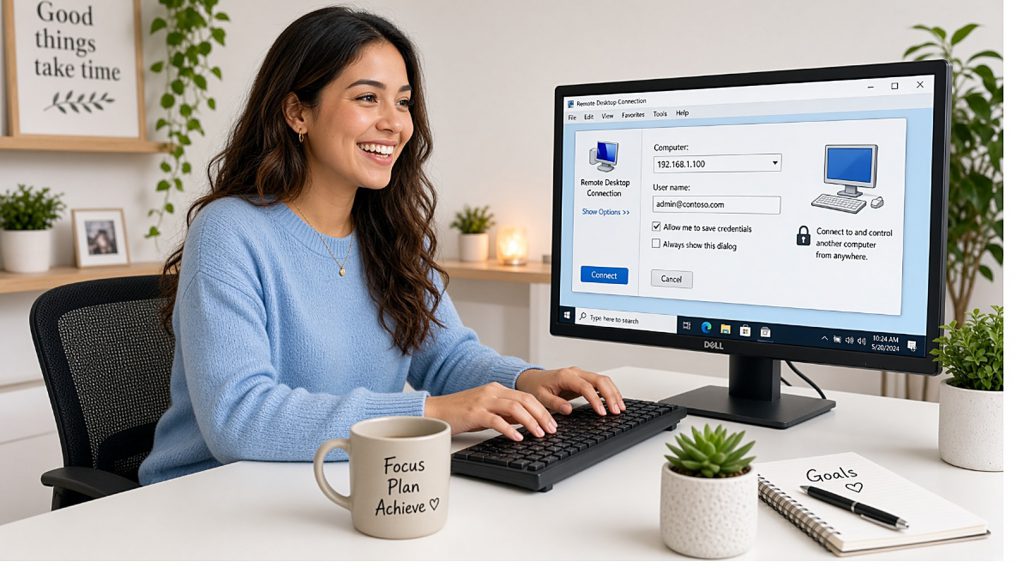
Short answer: Remote Desktop Connection is already installed on Windows. Search the Start menu for Remote Desktop Connection, enter your server address, sign in with your Windows username and password, and save the connection so it is one click next time.
Applies to: Windows 10 and Windows 11 · nothing to download
If you work from a Windows PC, this is the connection worth setting up properly. It takes about two minutes once, and it gives you sound, printing to your own printer, a second monitor and access to your own files — none of which browser access can offer.
The client is already on your machine. There is nothing to buy and nothing to download.
Connecting for the first time
- Open the Start menu and type Remote Desktop Connection. Click the app when it appears. You can also press Windows+R and type mstsc.
- Enter your server address in the Computer box — the IP address or hostname from your welcome email.
- Click Connect.
- Enter your Windows username and password. These are not your control panel login — they are the separate credentials for the desktop itself.
- Accept the certificate warning and tick the box to remember it. This is expected when connecting straight to your own server.
- Wait for the desktop to load. The first sign-in takes a minute or two longer while Windows builds your profile.
Two logins, not one
Your control panel sign-in manages billing and support. Your Windows sign-in gets you into the desktop. Using the wrong one is the single most common reason a first connection is refused.
Save the connection so it is one click next time
Before connecting, click Show Options at the bottom of the window. Fill in your username so you are not asked each time, then click Save As and put the .rdp file on your desktop.
From then on, double-clicking that file connects you straight away. You can pin it to the taskbar or the Start menu like any other shortcut.
Settings worth turning on
All of these live under Show Options, and they are what make RDP worth using over browser access. Set them before you connect.
Local Resources tab
Remote audio — set it to play on this computer so you can hear sound. Printers — tick it and your own printer appears inside Windows. Clipboard — tick it for ordinary copy and paste. Then click More to map your own drives and USB sticks into the cloud desktop.
Display tab
Tick Use all my monitors for the remote session to spread the desktop across two screens.
Experience tab
Pick your connection speed. On a slow or unstable connection, choosing a lower setting turns off wallpaper and animations and makes the session noticeably more responsive.
Questions and answers
Do I need to install anything on Windows?
No. Remote Desktop Connection ships with Windows 10 and 11. Search the Start menu for it, or press Windows+R and type mstsc.
Where do I find my server address?
In your welcome email, and in your control panel under your account summary. It does not change unless you ask us to change it.
My password is rejected but I am sure it is right.
You are probably using your control panel login rather than the Windows one. They are separate accounts. Check your welcome email, or open a support request and we will reset the Windows password.
Why does it warn me about a certificate?
Because you are connecting directly to your own server rather than through a service with a published certificate. The connection is still encrypted. Accept it and tick the box to remember your choice.
How do I get sound working?
Before connecting, open Show Options, go to Local Resources, and set Remote audio to play on this computer. Sound is off unless you turn it on.
Can I use two monitors?
Yes. Under Show Options, Display tab, tick “Use all my monitors for the remote session” before connecting.
It will not connect from my office. What is wrong?
Many corporate and school networks block the port RDP uses. Test on a phone hotspot to confirm, and use browser access while you are on that network.
Related articles
- What you need to connect to your cloud desktop by RDP
- RDP will not connect: how to fix it
- Browser access or RDP: which should you use?
Stuck on the first connection?
Open a support request from your control panel — that is the fastest route, because it reaches the team who can already see your account. You can also email [email protected]. Tell us the exact wording of any error.